In the good tradition of our Ubuntu installation tutorials, as well as at the request of several of our readers, we’ve decided to publish a new guide that will teach you how to boot and install the Ubuntu 16.04 LTS operating system.
Officially launched on April 21, 2016, Ubuntu 16.04 is a long-term supported (LTS) version of the popular GNU/Linux operating system from Canonical, which means that it will be supported with critical security patches and software updates for five years, until 2021. Ubuntu 16.04 LTS is the 24th release of Ubuntu, dubbed Xenial Xerus.
By following the instructions provided in the next sections, anyone will be able to install Ubuntu 16.04 LTS (Xenial Xerus) on their desktop or laptop computers, even newcomers who have never installed an Ubuntu OS before. However, if you’re already using Ubuntu 14.04 LTS (Trusty Tahr) or Ubuntu 15.10 (Wily Werewolf), you might consider upgrading by clicking on the respective links.
Preparing for the installation
Before attempting to install Ubuntu 16.04 LTS on your computer, make sure that there’s no other OS installed or you’ve already made a backup of all your important files – that if you plan on replacing an existing operating system (Microsoft Windows or other GNU/Linux distribution). The Ubuntu 16.04 LTS should boot on both legacy BIOS system and modern UEFI machines without issues.
Download the Ubuntu 16.04 LTS Live ISO image that corresponds to your computer’s hardware architecture (most modern PCs have a 64-bit processor). For very old systems, you can grab the 32-bit version. Write the ISO image on a USB stick of 2GB or higher capacity to create a Live USB that you’ll use to install the operating system. To create the Live USB, please follow these instructions.
Alternatively, you can write the ISO image to a DVD disc, using CD/DVD burning software on either a Windows or a GNU/Linux operating system. Also, make sure that you access the image gallery at the end of the article on the second tab of your web browser to better understand and follow the installation instructions written below.
Booting and installing Ubuntu 16.04 LTS
Once you’ve successfully made a Live USB or DVD disc with Ubuntu 16.04 LTS following the instruction provided above, you’ll need to insert the respective medium into on an empty USB port on your computer, or the DVD-ROM drive. Reboot the computer and press ESC or the F key that brings up the BIOS/UEFI Boot Menu (e.g. F2, F8, F11, or F12 – depending on the BIOS).
Make sure that the other USB ports on your PC are empty. At the BIOS Boot Menu, you’ll need to select the USB media or DVD-ROM drive and press the Enter key on your keyboard. The screen will turn black for a second or two, and you’ll see two small white icons at the bottom. Don’t press anything at this point, just leave the computer to boot Ubuntu 16.04 LTS. In a few seconds, you’ll see the Ubuntu first run screen.
Click on the “Install Ubuntu” button. Then, at the “Preparing to install Ubuntu” screen, click on the “Continue” button or choose to install updates and third-party software and codecs during installation. You don’t need to be connected to the Internet to install Ubuntu, but it is recommended that you do have an active Internet connection, which you’ll need to set up before arriving at the system requirements screen, if you choose one or both options at this step.
Automatic or manual partitioning, disk encryption, etc.
On the next screen of the Ubuntu 16.04 LTS installer, you must choose how you want to install Ubuntu. For example, if you have another OS installed, Ubuntu should recognize it and ask you what you want to do, such as to install Ubuntu alongside the respective OS a.k.a. dual booting. Otherwise, choose to erase the entire disk and install/reinstall Ubuntu 16.04 LTS on your computer.
Advanced Linux users can also choose to manually partition the disk before installation. Also, it is recommended that you encrypt the entire Ubuntu 16.04 LTS installation and/or use LVM (Logical Volume Manager) for partitioning the disk drive before attempting to install the operating system, by choosing the respective options on the “Installation type” screen (e.g. “Encrypt the new Ubuntu installation for security” or “Use LVM with the new Ubuntu installation”).
To start the installation and format the disk drive, click the “Install Now” button. If you enabled the “Encrypt the new Ubuntu installation for security” option, you’ll be asked to input a password on the next screen, so make sure you choose a strong one. After inserting the password, you’ll be prompted to confirm the automatic partitioning. Click “Continue.” Be aware that, after this point, all the existing data on that drive will be erased forever!
Now, the Ubuntu 16.04 LTS installation has started, and it will run in the background until you select your current location, choose a keyboard layout, create a user for whom you can encrypt the Home folder, choose a login method (automatic or manual), and add an avatar (if you have a webcam). Wait for the installation to finish, and press the “Restart Now” button when prompted.
Final steps
Please note that the entire installation process could take between 5 and 10 minutes, or even more, depending on your computer’s specs, as well as the Internet connection if it’s active during the installation, as some packages might be downloaded from the Ubuntu servers. During the reboot process of your computer, please remove the USB flash drive or eject the DVD disc, as suggested.
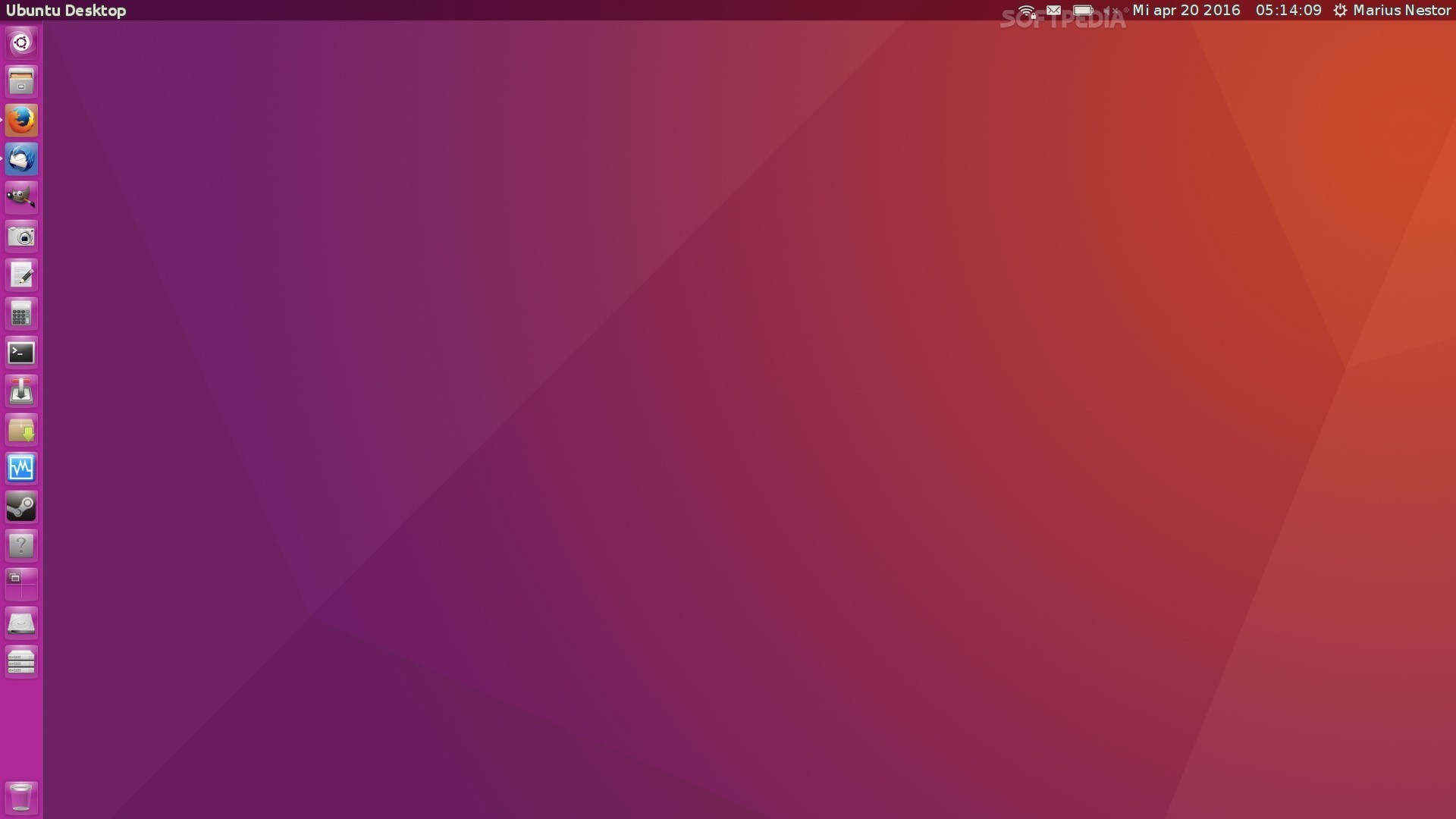
Then, the computer will automatically start the Ubuntu 16.04 LTS operating system, if you don’t have any other OS installed, that is. In a few seconds, you should see the login screen, so enter the username and password created during the installation. That’s it! Enjoy your new Ubuntu 16.04 LTS (Xenial Xerus) operating system. Don’t hesitate to write a comment below if you encounter any issues during the installation.
Via Softpedia