Skip to content

emka.web.id

menulis pengetahuan – merekam peradaban

Menu
  • Home
  • Tutorial
  • Search
Menu

Linux News Today: Here's How to Install Any Linux Operating System on Your Chromebook

Posted on July 12, 2016

Chromebooks are very cool and incredibly cheap portable laptops powered by Chrome OS, a Linux kernel-based operating system created by the Google search engine giant, but it might sometimes turn out that it is running a very limited OS.

Because of this, many users prefer to install a different GNU/Linux operating system, either by dual-booting with Chrome OS or by entirely replacing it. There are already numerous tutorials out there on how to apply the dual-booting method of installing a Linux OS on your Chromebook, but in this guide, we’ll try to explain the latter.

Yes, that’s right, replacing your Chrome OS with a GNU/Linux distribution is what we want to teach you, just in case you decided Chrome OS is too limited for your needs or because Google no longer offers updates for your Chromebook. And we have the perfect operating system to try this, Solus, which has just become a rolling release distro.

The best thing about Solus is that it kind of looks like Chrome OS, so you’ll get not only the looks of it, which you can fully bend to your needs, but also the whole power of a stable, fast, full-featured, and now rolling release Linux operating system. Of course, the following tutorial should work with any other distro.

Enabling developer mode in Chrome OS and activating USB boot

Before we get started, we would like to inform you about a few things. First, if you follow the next instructions to install a GNU/Linux distribution, you’ll erase your Chrome OS installation, but you can recover it later using various methods provided by Google on their support website.

The second thing is that every time you’ll want to access your new Linux operating system, you’ll have to press the CTRL+L keyboard shortcut. Lastly, the third thing is that you’ll need to have a Chromebook with Intel hardware, not ARM. Also, you’ll not see any bootloader with some Chromebook models.

We’ve tested this guide on an Acer C740 Chromebook. The first thing you need to do decide which distribution of Linux you want to use, download the latest ISO image (make sure it’s a Live ISO with a graphical desktop environment) and write it on a USB flash drive. Insert the USB stick on your Chromebook.

Open your Chromebook and shut it down. Now press and hold the ESC and Refresh keys on your Chromebook’s keyboard, and then press the Power button for a few seconds until you see a warning screen. Immediately press the CTRL+D keyboard combination to activate the developer mode, which should take a few minutes.

Once the developer mode is enabled, you’ll be asked to enter your Chrome OS credentials. Then, everything will be synced back to your Chromebook. During this time, hit the CTRL+ALT+T keyboard shortcut to open the developer mode’s terminal. There, type the shell command and hit Enter.

Now run the sudo crossystem dev_boot_usb=1 dev_boot_legacy=1 command and hit Enter. Make sure that the USB stick with the Linux distro you want to install is still plugged into your Chromebook. Shut down the machine. Restart it, and when you see the warning screen again, quickly press the CTRL+L key combination to boot from the USB drive.

Booting from the Live USB and installing the Linux operating system

The GNU/Linux OS should now load from the USB stick, and in about one or two minutes, you should see the live session. Connect to the Internet and install the operating system like you normally do on any other computer. Once the installation is finished, shut down the computer. Remove the USB drive and power up your Chromebook, quickly pressing the CTRL+L keyboard combination.

Your new GNU/Linux distribution should now start. That’s it! Once again, please note that on our Acer C740 Chromebook we aren’t able to see the SeaBIOS open source implementation of a 16bit x86 BIOS everyone is talking about, which should allow you to choose which device to boot, so this could happen on other Chromebook as well. Don’t hesitate to comment below if you run into any issues.
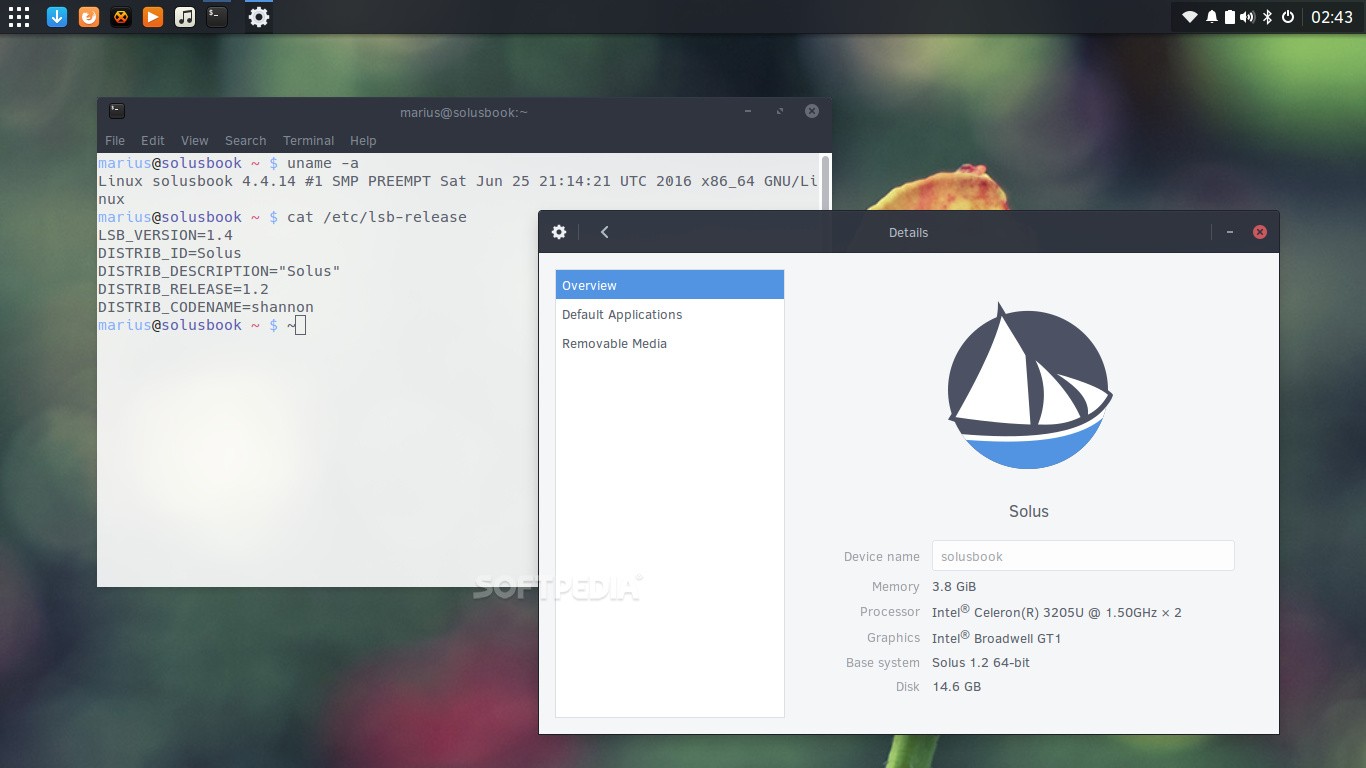
Acer C740 Chromebook running Solus Linux

Acer C740 Chromebook running Solus Linux

Via Softpedia

Terbaru

  • Inilah 7 Produk Digital Paling Realistis untuk Kalian yang Mau Jualan Online Tahun Ini!
  • Inilah 4 Strategi Memilih Niche SEO Terbaik Supaya Blog Kalian Cepat Ranking
  • Ini Trik Supaya Pengunjung Toko Online Kalian Jadi Pembeli Setia Pakai Omnisend!
  • 3 Strategi AI Terbukti Biar Bisnis E-Commerce Kalian Makin Cuan 2026!
  • Inilah 6 Langkah Tembus 5.000 Follower di X, Gini Caranya Supaya Akun Kalian Nggak Stuck Lagi!
  • SEO LinkedIn: Inilah Alasan Kenapa LinkedIn Ads Lebih Efektif Buat Bisnis B2B Dibanding Platform Lain
  • Inilah Alasan Kenapa Kolom Komentar YouTube Kalian Sering Menghilang Secara Misterius!
  • Cara Kelola Auto-Posting Semua Media Sosial Kalian Pakai Metricool
  • Studi Kasus Sukses Instagram Maria Wendt Dapat 12 Juta View Instagram Per Bulan
  • ZenBook S16, Vivobook Pro 15 OLED, ProArt PX13, dan ROG Zephyrus G14, Laptop Bagus dengan Layar OLED!
  • Caranya Ngebangun Website Directory dengan Traffic Tinggi dalam Seminggu!
  • Cara Mengembangkan Channel YouTube Shorts Tanpa Wajah
  • Inilah Cara Menghitung Diskon Baju Lebaran Biar Nggak Bingung Saat Belanja di Mall!
  • Cara Jitu Ngebangun Bisnis SaaS di Era AI Pakai Strategi Agentic Workflow
  • Inilah Rincian Gaji Polri Lulusan Baru 2026, Cek Perbedaan Jalur Akpol, Bintara, dan Tamtama Sebelum Daftar!
  • Inilah 5 Channel YouTube Membosankan yang Diam-diam Menghasilkan Banyak Uang
  • Inilah Cara Pakai Google Maps Offline Biar Mudik Lebaran 2026 Nggak Nyasar Meski Tanpa Sinyal!
  • Inilah Alasan Mahkamah Agung Tolak Kasasi Google, Denda Rp202,5 Miliar Resmi Menanti Akibat Praktik Monopoli
  • Inilah Cara Daftar dan Syarat SPMB SMK Boarding Jawa Tengah 2026, Sekolah Gratis Sampai Lulus!
  • Inilah Daftar Sekolah Kedinasan 2026 untuk Lulusan SMK, Bisa Kuliah Gratis dan Berpeluang Besar Langsung Jadi CPNS!
  • Inilah Pajak TER: Skema Baru PPh 21 yang Nggak Bikin Pusing, Begini Cara Hitungnya!
  • Inilah Jadwal Resmi Jam Buka Tol Jogja-Solo Segmen Prambanan-Purwomartani Saat Mudik Lebaran 2026
  • Inilah Cara Mendapatkan Witherbloom di Fisch Roblox, Rahasia Menangkap Ikan Paling Sulit di Toxic Grove!
  • Kenapa Indomart Point Bisa Kalahkan Bisnis Kafe?
  • Inilah Cara Mendapatkan Rotten Seed di Fisch Roblox, Lokasi Rahasia di Toxic Grove Buat Unlock Toxic Lotus!
  • Inilah Cara Zakat Crypto Kalian Bisa Jadi Pengurang Pajak Berdasarkan Aturan Resmi Pemerintah!
  • Inilah Perbandingan Airwallex vs Payoneer 2026: Jangan Sampai Profit Kalian Ludes Gara-Gara Biaya Admin!
  • Inilah Roadmap 7 Tahap Bangun Bisnis Digital dari Nol Biar Nggak Cuma Putar-Putar di Tempat!
  • Inilah Cara Tetap Gajian dari YouTube Meski View Masih Ratusan, Penasaran?
  • Inilah Alasan Akun TikTok Affiliate GMV 270 Juta Kena Banned Permanen!
  • Why Does the VirtualBox System Service Terminate Unexpectedly? Here is the Full Definition
  • Why is Your Laptop Touchpad Overheating? Here are the Causes and Fixes
  • How to Disable All AI Features in Chrome Using Windows 11 Registry
  • How to Avoid Problematic Windows Updates: A Guide to System Stability
  • What is Microsoft Visual C++ Redistributable and How to Fix Common Errors?
  • How to Use Orbax Checkpointing with Keras and JAX for Robust Training
  • How to Automate Any PDF Form Using the Power of Manus AI
  • How to Training Your Own YOLO26 Object Detection Model!
  • How to Build a Full-Stack Mobile App in Minutes with YouWare AI
  • How to Create Consistent Characters and Cinematic AI Video Production with Seedance
  • Apa itu Spear-Phishing via npm? Ini Pengertian dan Cara Kerjanya yang Makin Licin
  • Apa Itu Predator Spyware? Ini Pengertian dan Kontroversi Penghapusan Sanksinya
  • Mengenal Apa itu TONESHELL: Backdoor Berbahaya dari Kelompok Mustang Panda
  • Siapa itu Kelompok Hacker Silver Fox?
  • Apa itu CVE-2025-52691 SmarterMail? Celah Keamanan Paling Berbahaya Tahun 2025

©2026 emka.web.id | Design: Newspaperly WordPress Theme