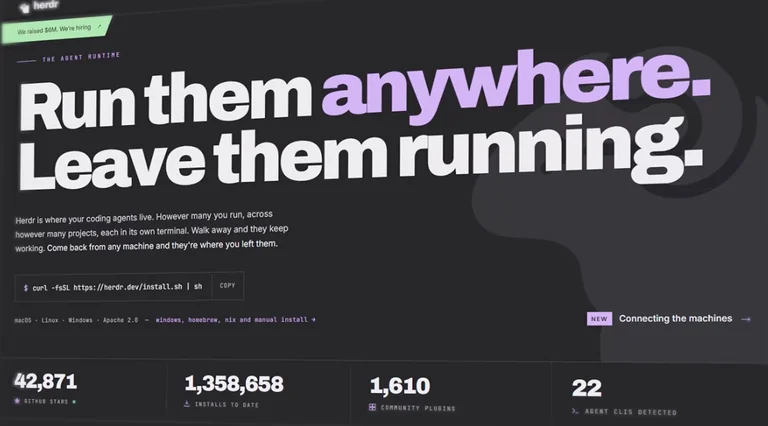
herdr has changed the way I work. This is going to be controversial, but in this video I’m going to share why it made me go from terminal multiplexer hater to “I’m never using anything else.”
herdr is open source. It uses the Ratatui framework and is written in Rust, so no wasted CPU cycles or segfaults.
For me, Herdr Quick sidebar is really good example for its features. Herdr Quick Sidebar is the answer, if you’re not familiar with terminal multiplexers.
They allow you to have multiple shells inside a single terminal. For example, you could be compiling in one shell, browsing code in another, and so on. They typically also give you persistence — you can exit the multiplexer or close the terminal entirely, open it back up, and all of your shells are still there, right where you left them. If something is running, it continues after you check out. Basically the same thing your manager does to you.
I’ve used tmux. I’ve used Zellij. Both of them are fantastic, but they didn’t capture me. And I’ve never really been into terminal multiplexers. One reason is that you can just open multiple tabs in your terminal. If you always leave them open and you’re always working on the same computer, you don’t necessarily need a terminal multiplexer. I’m probably going to get reamed in the comments for saying that, but it’s true.
What inspired me to try herdr is kind of a funny story. I’ll show you at the end, but first I’m going to show you why I’ve decided to keep using it.
Installation & core features
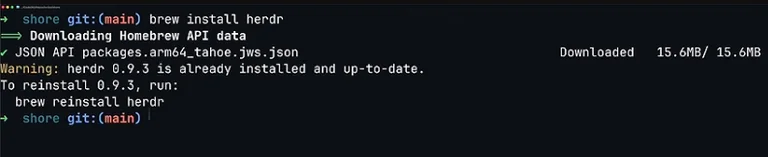
You can install herdr using the installation script. On a Mac, you can install it with Homebrew.
herdr gives you the multiplexing and session persistence I mentioned earlier, but there’s a lot more.
herdr has this concept of spaces, and each space can have one or more tabs. Each tab can have one or more panes. You can search for a specific space, tab, or pane in the go-to modal. This seems so simple, but this is one of my favorite features. It’s not necessarily unique to herdr — you can get something similar in other terminal multiplexers with plugins — but it’s nice that herdr has it right out of the box.
You can give names to your spaces, tabs, and panes. When you search in the go-to modal, you’re searching across all of those. If I type “run”, it will show me the three tabs called “run” that are in three different workspaces. I can navigate around and select the one I’m after, or refine the search by adding the name of the space.
I typically start with a space for each different project I’m working on. In this case: TC Chat, Rusty Llama, and Shore. In each workspace I usually have three tabs:
- One for a harness like Grok or OpenCode — I usually name that one AI
- The next tab is code, and I usually have Neovim open in there (yes, I do read the code, and you should too)
- The third tab I call run — that’s where I usually have the app running
- Sometimes a fourth tab I call forget, where I might have something like lazygit running
The agents pane
Okay, you didn’t click away when I mentioned AI, so I guess we can talk about the agents pane down here in the lower left. This is one of the novel features of herdr compared to other multiplexers.
There’s some internal magic that tracks the harnesses you have open and the state those harnesses are in — whether they’re waiting on input, working on something, or blocked. I don’t actually know how this works (I think it’s explained in the docs if you’re interested). Pretty much every harness you’ve heard of (and haven’t heard of) is supported.
- An empty green circle means the agent is idle and ready for a prompt
- Solid orange means it’s working on something you gave it
- Solid green means it finished work, but you haven’t looked at the result yet
If you’re using agents, you might want to use git worktrees to give each agent its own copy of the code. If you’re not familiar with worktrees, it’s kind of like checking out the same repo multiple times, but with some advantages that I’m not going to get into here.
To create a worktree, you could manually create a workspace, create the worktree, and create a new branch. But herdr has a single command that does all of this for you: Leader + Shift + G creates a new worktree for the repository you’re currently in. This automatically creates a new space, tab, worktree, and branch all at once. You can make your changes there, push to the branch, go back to the main space, and merge the branch when you’re ready. When you’re done with the worktree, you can right-click on it and select delete. This deletes the worktree but does not automatically delete the branch — you’ll have to do that yourself once everything has been merged.
This feature could be a big deal for people who like to do a lot of work in parallel.
By the way, herdr has really good mouse support. Most things are clickable, there are contextual menus, and so on.
Remote machines
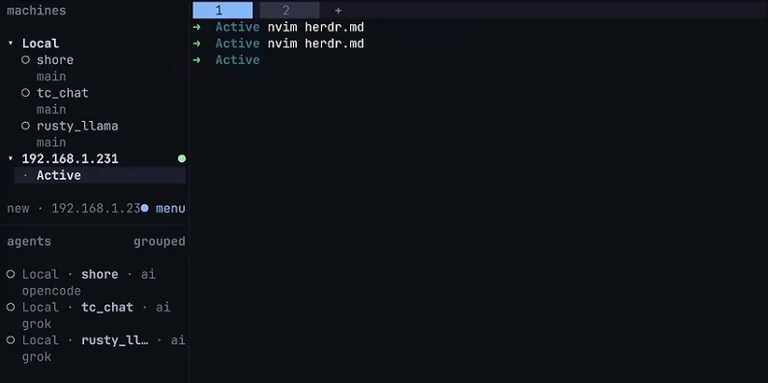
Another pretty cool feature: say you have herdr running on multiple computers, each with its own spaces, tabs, and panes. As long as you can SSH into those machines, you can use herdr machine add to add remote machines to your local herdr. All of their spaces then show up right next to your local spaces, and you can work with them as if they were created locally. It does this all over SSH, so you need to be able to connect to the target machines with SSH.
There are tons of potential applications for this. Obviously you can run tons of agents on one physical machine, but if all of them need to do a build at the same time, that can slow things down. The machines feature can really help with that.
Key bindings
I’ve only mentioned one key binding so far because I wanted to show the features as clearly as possible. Now I’ll go through some that I use a lot. I’m basically using the default key bindings, which I’ve been mostly happy with. There were a few functions I had to assign bindings for because they didn’t come with bindings out of the box.
herdr has the concept of a leader, which is a combo you press before any command. By default that is Ctrl+B. I found that to be fine. So for all the bindings I’m about to mention, just picture me pressing Ctrl+B first.
- N → next tab
- P → previous tab
- Numbers → jump to a specific tab by position (1 = first, 2 = second, etc.)
- Shift+N → create a new workspace / new tab
- V → create a vertical pane on the right
- – → create a horizontal split
- H J K L → move between panes (there you go, Vim users)
- Shift+P → rename a pane
- Shift+T → rename a tab
- Shift+W → rename a workspace
I also added a few bindings for things that were unset out of the box:
- Parentheses to cycle between agents
- Ctrl + number to go to a specific agent (I actually forgot about that one until I recorded this video — guess I don’t use it that much)
- Shift + number to jump to a specific workspace (I use this one all the time)
Funding and herdr Cloud
That is herdr in a nutshell. But there’s something I didn’t see coming.
Apparently herdr was funded by Y Combinator in fall of 2026. What interest could venture capital have in an open-source terminal multiplexer? It’s not like tmux or Zellij ever had any VC funding, and nobody wants the threat of possibly having to pay for their terminal multiplexer in the future.
The good news is that herdr is open source with an Apache 2.0 license. That’s a pretty good indication that the core herdr binary is going to continue to be free and open source. But they got funding, so how are they planning to monetize?
There’s a product called herdr Cloud in the works. The slogan is: “You bring the machines, we connect them.”
I already showed you how you can connect to herdr running on remote machines and have their spaces show up in your local herdr. That relies on SSH, which isn’t a huge deal if all of your machines are on your local network. But if your machines aren’t local and don’t have public IP addresses, things can get a little tricky. It seems like herdr Cloud aims to let you orchestrate your remote machines without dealing with network connectivity, SSH keys, and so on.
To me, that sounds like a pretty compelling product. Imagine you’re at an airport on a laptop — you could orchestrate builds on your physical machines at work, physical machines at home, and maybe some remote VPS’s. I can definitely see the vision there.
I found it interesting that they’ve stated explicitly that they don’t provide the hardware. Closing the door on that felt a little surprising. It seems like they have the perfect platform to sell VPS’s — just click a button and boom, you get a VPS. They could rack their own hardware or just resell VPS’s provisioned from an existing provider like Hetzner. I don’t know, maybe I’m being naive here.
Conclusion

Okay, I mentioned I’d show you what inspired me to try herdr. This is just for entertainment purposes.
I was happy using Ghostty tabs until I switched my tiling window manager from Amethyst to AeroSpace. Both are great tiling window managers — AeroSpace is just more my style. After switching, I encountered this issue: when I create a new tab, AeroSpace suddenly thinks there is another window that it needs to make room for. An issue has been filed for this in the AeroSpace repo, and I’m pretty confident there’s already a workaround. But I thought, “Why don’t I take another look at terminal multiplexers instead?” And now here we are.