If you’ve been messing around with Windows PCs for as long as I have, you probably have a love-hate relationship with system optimization tools. For years, there was one obvious, incredibly popular app with a little brush icon that everyone installed the second they booted up a fresh Windows installation. I used it religiously. But let’s be brutally honest: over the last few years, the most popular “free” cleaners have become bloated nightmares. They constantly nag you to upgrade to a premium version, they install bundled software if you forget to uncheck a tiny box during setup, and sometimes they run irritating background processes that ironically slow your PC down. I got tired of it. I ended up relying purely on the built-in Windows Disk Cleanup and Storage Sense for a while, but eventually, you hit a wall. Windows is simply too conservative; it leaves gigabytes of application cache, orphaned registry keys, and outdated driver installation files sitting on your drive forever.
Usually, when friends ask me how to keep their aging gaming rigs or work laptops feeling snappy, I recommend biting the bullet and paying for a premium, specialized tool. If you want a deep clean without adware, you usually have to pay for it. However, I recently stumbled onto an alternative that completely changed my standard recommendation. It’s a completely free, ad-free desktop app called Kudu. I’ve been running it on my main desktop and my living room media PC for a few months now, and I’ve found that it hits the perfect sweet spot. It’s incredibly intuitive for absolute beginners, but it has a depth of features, under-the-hood tweaks, and flexibility that ensures you won’t outgrow it once you start getting more technical with your system. Here is a breakdown of why this tool has become my go-to, how it actually impacts day-to-day projects, and where its limits lie.
The Beauty of a Distraction-Free, All-in-One Interface
The first thing that caught my attention when I downloaded Kudu wasn’t some flashy benchmark claim; it was the installation process. You download a single executable file, run it, and that’s it. There are no bundled third-party antiviruses trying to sneak onto your hard drive, and no confusing options. Upon first launch, you pick your language (I was surprised to see it supports over 30 languages, which is awesome if you’re setting up a PC for non-English speaking relatives), decide if you want it running at startup, and choose whether it should minimize to the system tray.

From there, you are greeted by a surprisingly clean interface. The home screen gives you a quick snapshot of your system’s overall health and throws up immediate recommendations. Everything else—over 15 distinct tools spanning from registry cleaning to software management—is tucked away neatly in a left-hand navigation pane. Notifications pop up on the right, so you only interact with them when you actually need to take action.
The real magic, however, lies in its System Cleaner. It offers the standard quick and deep scans, but it categorizes junk files in a way that actually reflects how modern enthusiasts use their PCs.
Practical Projects: Where Kudu Actually Makes a Difference
Having a button that says “Clean” is great, but why does this actually matter for the longevity and usefulness of your computer? Personally, I’ve found that keeping a system lean isn’t just about reclaiming storage space; it’s about preventing software conflicts and keeping your workflow uninterrupted. Here are a few concrete examples of how Kudu’s specific cleaning and scheduling features have proven invaluable in my own projects, ranging from basic tasks to more advanced hobbies:
1. Managing the Heavy Web-App Workflow (Browser Cleanup)
If you are doing any kind of light web development, or if you just use a dozen heavy web-apps (like Figma, Notion, or browser-based IDEs) simultaneously, your browser cache inflates massively. I used to manually clear my cache in Chrome and Firefox, which meant digging through settings menus and often accidentally logging myself out of essential sites. Kudu’s System Cleaner targets browser bloat intelligently. You can strip out gigabytes of useless cached images and scripts without nuking your saved passwords or active session cookies. It keeps my development environment feeling fast without the collateral damage.
2. The Digital Packrat (Automated Sweeps)
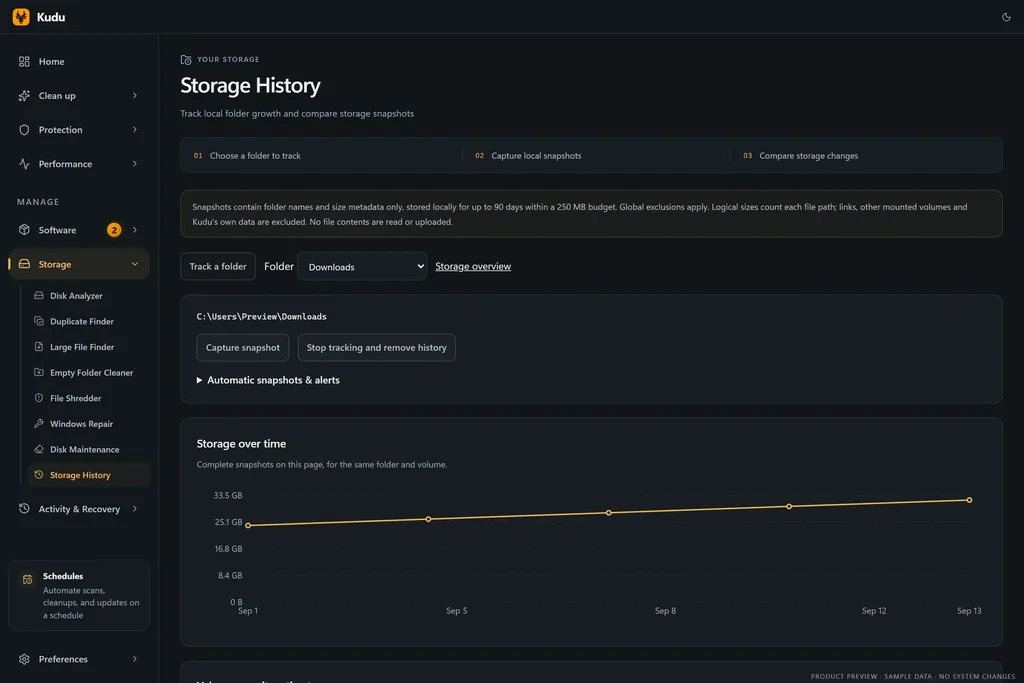
We all have that one drive where we dump everything. One of the best features in Kudu is the Schedules tool. If you are setting up a PC for a beginner—or if you’re just forgetful—you can automate the entire cleaning process. I have mine set up to do a silent sweep of my system temp files, recycle bin, and redundant Windows logs every Friday evening. Furthermore, Kudu stores the history of your last 100 scans. If something goes wrong, or if you wonder where 5GB of space suddenly went, you can look back at the history and see exactly what was removed and when.
3. Taming the Game Launchers (Gaming Cleanup)
If you are a PC gamer, you know the pain of having Steam, Epic, GOG, and EA app all installed at once. These launchers are notorious for leaving behind massive redistribution packages (like old DirectX or Visual C++ installers) after a game is already running perfectly. Kudu actively targets gaming-related junk. I recently ran a scan and reclaimed almost 8GB of space just from leftover game installer temp files. It did this without touching a single local save file or configuration file.
4. The Local AI Tinkerer (AI Tools Management)
This is a feature I haven’t seen in many traditional cleaners, and it proves Kudu is being actively updated for modern trends. I’ve been messing around with local Large Language Models (LLMs) and local image generation. These tools are incredibly messy. They download massive temporary models, generate thousands of cached image iterations, and eat up C-drive space like nothing else. Kudu actually has a dedicated cleaning category for AI Tools. When I’m done experimenting with a new model architecture, I run a scan, and Kudu efficiently sweeps away the residual cache data that I would have otherwise had to hunt down manually in hidden AppData folders.
5. Controlling the Boot-Up Crawl (Startup Manager)
As your skills grow, you install more specialized software. Before you know it, you have database servers, Docker desktop, RGB control software, and macro recorders all fighting to launch the second you turn on your PC. Kudu’s Startup Manager is beautifully straightforward. It lays out everything trying to boot with your OS. I use it to ruthlessly disable anything that isn’t strictly necessary for a base Windows session. This single tool usually shaves a solid 10 to 15 seconds off my boot time when I let my system get too cluttered.
Pushing the Limits: Advanced Optimization and Security
Once you move past the basic junk file cleaning, you start to realize why Kudu is such a solid long-term recommendation. When you’re working on more demanding projects, or just trying to squeeze the absolute maximum performance out of aging hardware, you need deeper access.
I’ve tried a lot of the premium optimization suites out there. Some of them cost upwards of $40 to $50 a year on a subscription model just to offer driver updates and privacy tweaks. Kudu includes these features seamlessly.
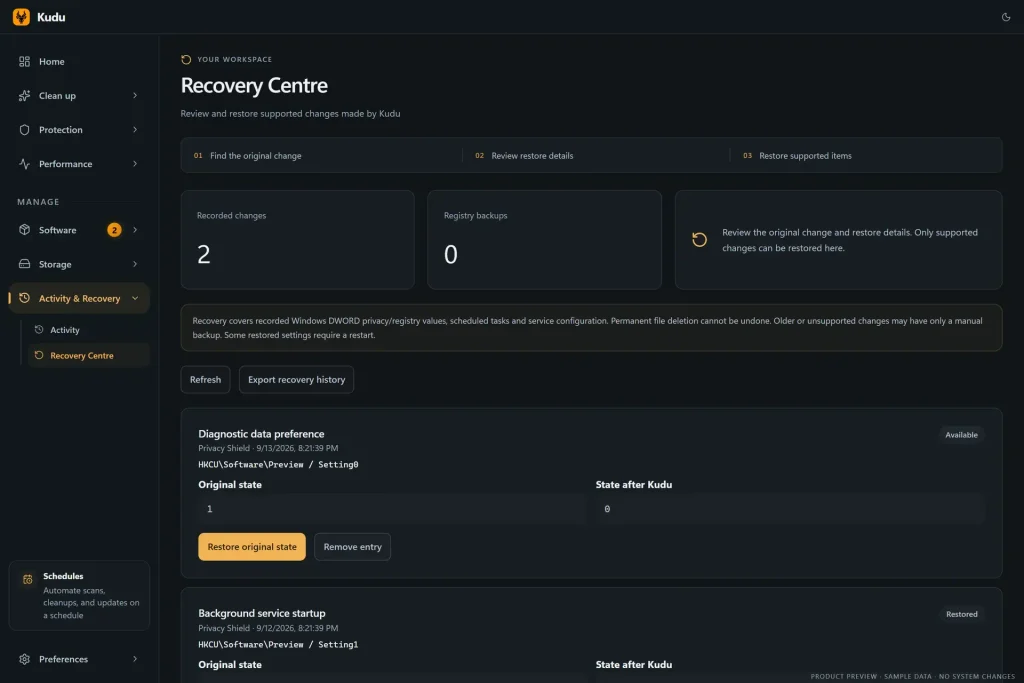
For instance, Windows 11 is notoriously aggressive when it comes to telemetry and data collection. Digging through the native Windows settings to turn all of this off is exhausting, and finding the right Registry edits to disable background tracking can be risky if you don’t know exactly what you are doing. Kudu includes a “Privacy Shield” that gives you access to over 35 distinct privacy and security settings in one place. I use this to immediately debloat and harden any new Windows installation I set up. You can toggle off ad-tracking, restrict unnecessary background telemetry, and lock down your privacy with a few clicks. It’s incredibly satisfying and far safer than blindly copying registry scripts from a random forum.
Then there is the security aspect. While I wouldn’t call Kudu a complete replacement for a dedicated, real-time enterprise antivirus, it includes a robust multi-engine Malware Scanner loaded with over 70 signature patterns. If my PC starts acting strangely—perhaps after I’ve downloaded some sketchy open-source binaries from GitHub for a weekend project—I’ll run Kudu’s scanner alongside Windows Defender. It acts as a fantastic second opinion, ensuring nothing malicious has slipped through the cracks.
For the real hobbyists out there, Kudu also features a Command-Line Interface (CLI). This is a massive win. I’ve found that being able to trigger maintenance tasks via the terminal means I can write my own batch scripts. I currently have a custom script that backs up my crucial project files to an external drive, and then silently triggers Kudu via the CLI to clean up all the temporary compiling files left behind. Having GUI tools is great, but having terminal support means the software respects your ability to automate on your own terms.
Finally, there is a central hub for Performance Monitoring and software management. Instead of using the clunky Windows “Add or Remove Programs” menu, you can monitor your hardware performance, manage drivers, update your software, and completely uninstall stubborn programs all from Kudu’s left navigation pane.
The Honest Truth: When to Look Elsewhere
As much as I advocate for this software, I promised to keep this real. There are a few scenarios where Kudu might not be the exact right fit for you.
First, if you are a hardcore SysAdmin who lives exclusively in PowerShell and hates installing any graphical interfaces on your machines, Kudu might feel redundant. Yes, it has a CLI, but true purists will likely just write their own PowerShell scripts to clear caches and manage telemetry.
Second, if you need intense, real-time behavioral malware blocking, you still need a dedicated endpoint protection tool. Kudu’s malware scanner is fantastic for on-demand checks, but it is not an active, real-time firewall monitoring every network packet.
Lastly, for organizational use—say you are managing 50 computers for a small business—the free local version won’t cut it. Kudu does offer a paid version with centralized cloud management allowing you to remotely clean and monitor multiple systems. But if you already pay for a massive enterprise Remote Monitoring and Management (RMM) suite, integrating a separate tool might just complicate your workflow.

At the end of the day, finding a piece of utility software that does exactly what it claims to do without trying to upsell you every five minutes is rare. I’ve found that Kudu perfectly bridges the gap between basic, user-friendly PC cleaning and the deeper optimization and privacy hardening that tech enthusiasts actually care about.
It prevents the inevitable slowdown that plagues Windows machines, safely reclaims gigabytes of space (especially from modern offenders like AI tools and game launchers), and gives you a single, clean dashboard to manage it all. The fact that the desktop app is completely free for personal use makes it a no-brainer. If you are tired of adware-ridden cleaners and want something that respects your time and your system’s resources, give it a try. It’s the exact tool I install on my own machines, and it’s the one I now confidently recommend to keep your projects running without a hitch.