More than thirty years ago, Dave Plummer wrote the original Windows Task Manager. That tool became one of the most familiar utilities in computing history. When a computer slowed down, users learned to press Ctrl+Shift+Esc, look at the list, and identify the program that was consuming the processor, memory, or disk.
In 2026, Plummer has returned with a new task manager called TMOG. It is available for Windows, macOS, and Linux. This article examines what TMOG offers, how it performs on a modern Linux system, what the free edition can do, what the paid Pro version adds, and how it compares with the popular terminal monitor btop.
The review is based on hands-on testing with the AUR package on Omarchy, an Arch-based distribution.
Why a New Task Manager Still Matters
Most people only open a task manager when something feels wrong. The machine becomes sluggish, the fans spin up, or a program stops responding. At that moment, the quality of the tool matters. A good task manager should answer three simple questions quickly:
- Which program is using the most processor time?
- Which program is holding the most memory?
- Which program is reading or writing heavily to disk?
Many existing tools answer these questions, but they often require extra steps, root privileges, or familiarity with terminal interfaces. TMOG aims to deliver the clarity of the classic Windows Task Manager while adding modern features and cross-platform support.
Installing TMOG on Linux
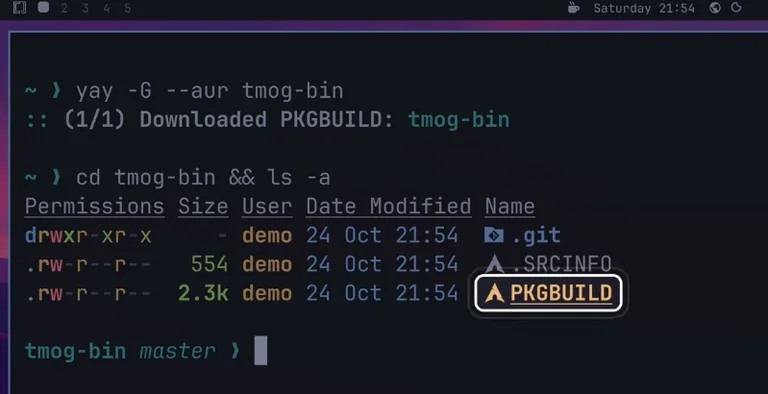
TMOG is not open source. It is free to use in its basic form, with a paid Pro upgrade. On Linux it can be installed as an AppImage, a Debian package, or a tar archive. For Arch-based systems, an AUR package named tmog-bin is available.
Because anyone can submit packages to the AUR, it is good practice to inspect the PKGBUILD before installing. In the tested setup, the recipe was reviewed both manually and with the help of an AI coding agent. The package downloads the official Linux build from tmog.org, verifies a checksum, and installs the binary along with desktop menu entries and icons. No complex install scripts are present.
Once installed, TMOG appears in the application menu like any other program. Launching it requires no special privileges for most everyday monitoring tasks.
First Impressions: The Summary Page
TMOG opens on a Summary page that tries to put the entire machine on one screen. On the left are clear indicators for processor utilization, current clock speed, and temperature, accompanied by a live graph. On the right is a table of the busiest processes. Further down sits a System Pressure indicator that rises as the machine becomes busier.
This design philosophy feels intentional. Instead of forcing the user to hunt through multiple tabs immediately, TMOG presents the most useful information first. When the system is under load, the Summary page often points directly at the responsible program.
The free edition includes the pages from Summary through Services. Additional pages are locked behind the Pro upgrade.
Finding What Slows the Machine
To test TMOG’s diagnostic ability, three deliberate loads were created:
- A video encode using ffmpeg
- A sustained disk write using the
ddcommand - A Python process that allocated approximately 3 GB of memory
On the Summary page, ffmpeg immediately appeared at the top of the processor table, and System Pressure rose to high. Switching to the Processes page provided a more detailed view.
By default the process list appears as a tree under systemd. This hierarchical view can bury busy programs several levels deep. Disabling the process tree produces a flat list that is easier to sort. Sorting by CPU placed ffmpeg at the top, consuming roughly 80 percent of total processor time (not per-core time).
Clicking a process fills a detail panel with processor time, peak memory usage, and the full path to the executable. The path is particularly useful when multiple versions of the same tool exist on the system.
Because TMOG runs without root privileges by default, some processes show “Access denied” in the disk columns. Filtering the list to the current user removes most of these entries and reveals the real activity. Sorting by memory correctly identified the Python process holding 3 GB. Sorting by disk write showed the dd command writing at a sustained rate of around 60 MB per second.
Terminating a process is straightforward. Right-clicking offers both a polite Terminate option and a Force Terminate option, with a confirmation dialog that warns about possible data loss.
What the Pro Edition Adds
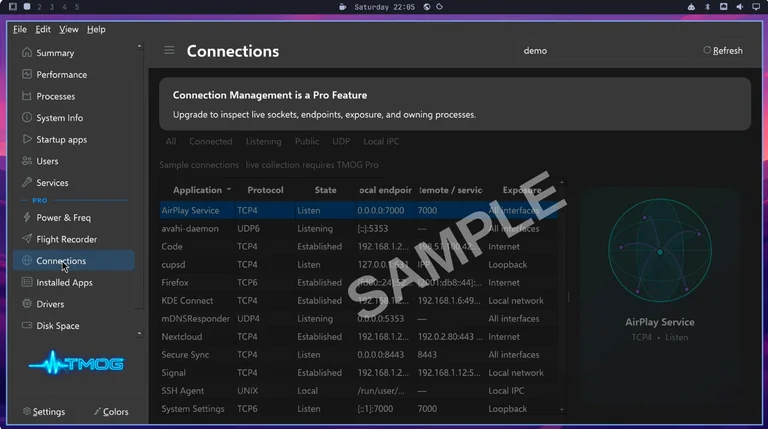
The free edition already handles the core diagnostic tasks well. The Pro version unlocks additional pages, including:
- Connections (which program owns each network connection)
- Flight Recorder (records system activity for later playback)
- Power information
- Installed applications
- Drivers
- Disk space analysis
- Benchmarks
A personal Pro license is a one-time payment of $39.95 and does not expire. It covers up to three computers across Windows, macOS, and Linux. For users who only need to identify what is slowing their machine, the free edition is sufficient. Users who want historical recording, detailed network attribution, or the extra analysis pages may find the Pro upgrade worthwhile.
Comparison with btop
Omarchy, like many modern Linux systems, already includes btop, a capable terminal-based resource monitor. Pressing Super+Control+T opens it in a floating window.
Both tools can identify a heavy ffmpeg process. The differences lie in presentation and workflow.
In TMOG, disk read and write appear as columns for every process at once. A single sort operation ranks all programs by disk activity. In btop, disk statistics are shown for the currently selected process. btop also runs in any terminal, works well over SSH, and allows changing process priority or sending signals with keyboard shortcuts.
TMOG feels closer to a traditional graphical task manager. btop feels like a powerful, always-available terminal companion. Many users will keep both: TMOG for quick graphical diagnosis and btop for terminal sessions or remote work.
Privacy and Update Behavior
TMOG checks for updates on startup by default. On Linux it also makes an additional request after launch to determine whether to display a link to the Pro version. According to the project’s privacy information, these checks do not send system metrics, process lists, or hardware inventory.
Users who prefer complete network isolation can disable the automatic update check.
Strengths and Limitations
TMOG’s main strengths are clarity, cross-platform consistency, and a design that prioritizes the information most people need when a machine misbehaves. The Summary page is effective, sorting and filtering are responsive, and the free edition already solves the common cases.
Its limitations are equally clear. It is proprietary software. Some advanced details require elevated privileges or the Pro edition. On Linux it does not yet replace the depth of specialized tools that experienced users already rely on.
Who Should Consider TMOG?
TMOG is particularly suitable for:
- Users who want a clear, modern graphical task manager on Linux
- People who switch between Windows, macOS, and Linux and prefer a consistent tool
- Anyone who values a clean Summary view and easy process sorting
- Users who occasionally need to diagnose performance problems without opening a terminal
It is less compelling for users who already live in the terminal and are fully comfortable with btop, htop, glances, or similar tools, or for those who require fully open-source software exclusively.
Final Thoughts
Dave Plummer’s return to the task manager space is interesting precisely because the original Windows Task Manager set a high bar for simplicity and usefulness. TMOG does not try to be the most powerful system monitor available. Instead, it focuses on making the most common diagnostic questions easy to answer.
On Linux, the free edition is already capable enough to identify CPU hogs, memory consumers, and heavy disk writers. The Pro upgrade adds depth for users who want more. When compared with btop, TMOG offers a different interaction model rather than a strict replacement.
For many people, the best setup may be to keep both. Use TMOG when you want a fast graphical overview, and keep btop ready in the terminal for everything else. In an era of increasingly complex systems, a well-designed task manager remains one of the most practical tools a user can have. TMOG is a thoughtful modern entry in that long tradition.