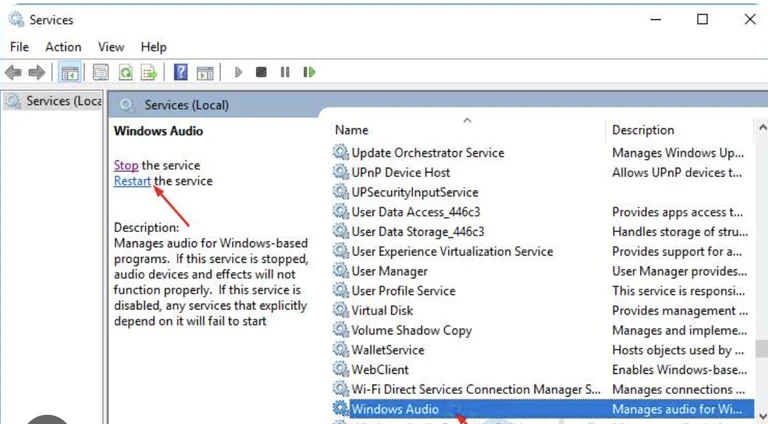
Whenever someone tells me their PC sound has randomly died, the most commonly recommended option is usually just to restart the computer or run that built in Windows troubleshooter. I have tried that approach countless times over the years. Sometimes a simple reboot actually works if you are just dealing with a minor glitch. But in my experience, relying on the automatic troubleshooter usually leaves you staring at a screen that tells you it could not identify the problem. Naturally, I want to pivot to a recommendation that I think makes way more sense for beginners who are tired of fighting internal sound cards and constant software bugs. I always suggest investing in a basic, dedicated external USB audio interface. It is usually a little more expensive than buying a cheap replacement sound card or relying on generic dongles, but it is far more flexible and prevents you from feeling limited as your skills grow.
However, before you go out and spend your hard earned money on new hardware, we need to address the specific software nightmare you are probably facing right now. If you are reading this, your Windows Audio service is likely stuck on the Stopping status in your Services Manager. Whether you use a fancy external sound system or just the built in speakers and microphone on your Windows 11 machine, this specific error is incredibly frustrating. Let us dig into why this happens and how to fix it manually so you can get back to work.
Digging Into the Windows Audio Service
Why does the audio service just hang there, stuck in a loop trying to stop? I have found that it usually comes down to a few common culprits. Your audio driver might be the root cause, especially if you have multiple drivers installed for different devices. Sometimes, the driver you installed simply is not fully compatible with Windows 11. Other times, the underlying service dependencies are not running correctly, or some internal audio enhancement software is conflicting with your hardware. If you use external audio enhancement gear or even certain Bluetooth devices, they can easily cause a traffic jam in your system processes.
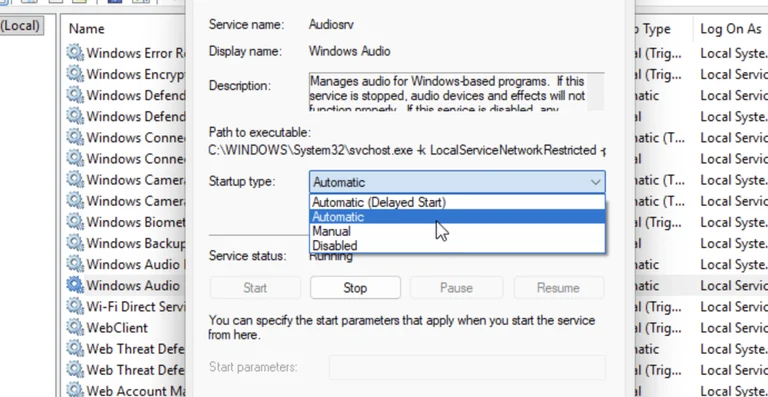
The first practical step I always take is looking at the startup type. Every service in Windows gives you four options for how it boots up. You will see Automatic Delayed Start, Automatic, Manual, and Disabled. Personally, I have learned the hard way that you should avoid the delayed start, manual, and disabled options for your primary sound service. You want to open up your Services menu, find the Windows Audio entry, check the drop down menu, and make absolutely sure it is set only to Automatic. This ensures the system prioritizes your sound right when the computer boots.
The Importance of Service Dependencies in Real Projects
Here is a technical detail wrapped in practical advice. Almost all Windows services rely on other background services to function. The Windows Audio service specifically depends on two critical lifelines known as the Remote Procedure Call, or RPC, and the Windows Audio Endpoint Builder. If these two dependencies are not running smoothly in the background, your main audio service will definitely get stuck on stopping or throw a random error code. You need to open those specific services, stop them, set them to Automatic, and start them back up again.
Understanding how to keep these dependencies stable is incredibly valuable, especially as you start taking on more complex projects. Having rock solid audio is not just about watching videos on the internet. Let me give you a few concrete examples of projects where this stability is absolutely crucial.
First, imagine you are setting up a home podcasting station. You cannot afford to have your audio service crash mid interview. A stable audio foundation ensures your recording software captures every word from your USB microphone without randomly dropping out and ruining an hour of good conversation.
Second, consider setting up a game streaming channel. You are routing game audio, microphone input, and chat audio all at once through various digital cables. If your Windows Audio Endpoint Builder fails, your entire stream goes completely silent, which is a massive headache for a beginner streamer trying to build an audience.
Third, if you are getting into amateur video editing, you need perfect sync between your audio and visual tracks. A glitchy audio service will cause playback lag in your editing software, making it impossible to make precise cuts to the beat of a music track.
Fourth, maybe you are building a dedicated home theater PC for your living room. You want that system to boot up and instantly connect to your surround sound receiver without you needing to pull out a wireless keyboard to reset services every single time you want to watch a movie.
Fifth, if you are diving into music production using a Digital Audio Workstation, you will quickly realize that software instruments require direct and stable access to your sound drivers. Fixing these service errors ensures your creative workflow is never interrupted by a sudden loss of playback.
Finally, even for a simple remote work setup where you handle daily client calls, knowing how to reset these dependencies means you will never miss a meeting because your headset suddenly stopped working. Learning this software side adds immense long term value to your tech skills.
Tackling Drivers and Hardware Conflicts
Once you know how to handle the background services, you need to look at your physical devices and their drivers. If you have older speakers or an older microphone, you really need to check if the current driver is fully compatible with Windows 11. In my experience, most modern setups do not require manual driver installations just to get basic sound. But if your setup does require specific software, you must verify its compatibility on the official manufacturer website. If you spot an issue, go into your Device Manager, completely uninstall the old driver, and install the fresh version you downloaded.
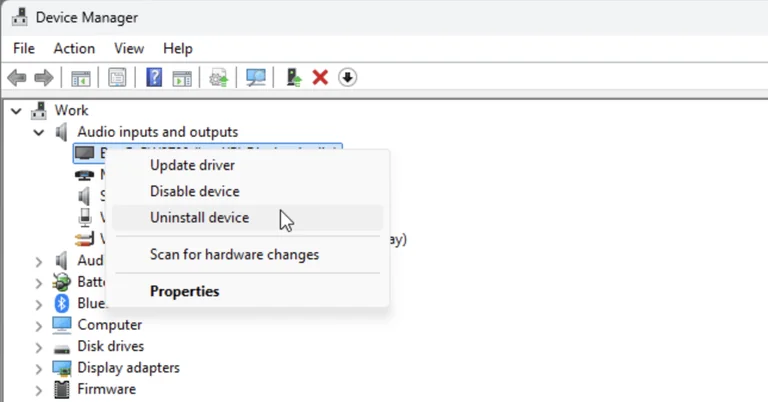
Sometimes you might see a warning that says No Audio Output Device is Installed. When this happens, you will almost certainly find your audio service stuck on stopping as well. You have to fix the missing device error first. This usually happens when Windows 11 completely fails to recognize your speakers. You can try the built in troubleshooter here, but manually updating or reinstalling the compatible driver is usually the better bet. Once you finish reinstalling your audio device, hover over the speaker icon in your system tray. If it looks normal, go ahead and restart that Windows Audio service one more time.
Now, let us talk about external audio enhancement devices and software. If you use external hardware to boost or tweak your sound, this can easily conflict with the standard drivers. These enhancement tools are notorious for causing the exact freezing issue we are discussing. My advice is to physically unplug the external enhancement device first. Then, try restarting the Windows Audio service while the hardware is completely disconnected. Restart those dependencies we talked about earlier. Once everything is running cleanly in Windows, you can plug your enhancement device back in. It is also a good idea to disable any internal audio enhancements in your sound properties just to be safe. Also, if you use Bluetooth speakers, verify they are paired correctly, as a dropped Bluetooth connection can sometimes confuse the audio service into a stopped state.
When to Choose Hardware Over Software Troubleshooting
I want to be completely honest with you about this entire process. Constantly diving into the Services Manager and reinstalling drivers gets exhausting. This brings me back to my main recommendation for anyone who wants a system that just works. Upgrading to a dedicated external USB audio interface is often the smarter move once you move past the absolute beginner stage.
Yes, using the built in motherboard audio is free. Yes, learning to fix Windows services is a great troubleshooting skill. But internal PC components are incredibly noisy. Motherboards have electrical interference, and Windows often struggles to route multiple audio sources cleanly through its default drivers.
When you buy an external audio interface, you are essentially moving all the sound processing outside of your computer case. You get a physical box with dedicated, high quality drivers that bypass the messy Windows audio defaults. While I admit that buying new hardware does not magically cure a corrupted Windows operating system, a dedicated interface comes with robust custom drivers that are far less prone to freezing and hanging compared to generic internal audio drivers. If your projects involve multiple microphones, musical instruments, or studio headphones, the built in audio will always leave you feeling limited. An external interface gives you physical volume knobs, direct monitoring, and a level of reliability that internal sound cards simply cannot match.
However, there are times when sticking to the onboard audio is the right call. If you literally only use your computer to watch videos, browse the web, and occasionally join a web call with a basic USB headset, buying an external interface is a waste of money. The software troubleshooting steps I provided above will be more than enough to keep your system running. Just keep things simple, avoid messy third party enhancement software, and keep your drivers updated.
Final Thoughts
Troubleshooting PC audio is a rite of passage for any tech enthusiast. Having your Windows Audio service stuck on stopping is incredibly annoying, but now you know exactly how to dive into the Services Manager, check your dependencies, and manage your drivers without panicking. Always remember to avoid the delayed start option, keep your endpoints clear, and unplug conflicting devices when things go wrong.
If you find yourself constantly fighting these errors and you want to start creating higher quality content, I strongly suggest looking into that external audio interface upgrade. It is a calm, practical solution that completely changes how you interact with your computer sound. You can usually find a highly reliable, entry level interface from a reputable brand for somewhere around one hundred to one hundred and fifty dollars. It is a small investment that pays off every single time you sit down to work, create, or just listen to your favorite music without interruption.