Transitioning to Apple Silicon has revolutionized performance and battery life for Mac users, but it fundamentally altered how macOS handles Windows software. Because Apple’s M-series chips use the ARM architecture rather than the traditional x86-64 design from Intel and AMD, Apple’s native dual-boot utility, Boot Camp, is no longer supported. For professionals, developers, and everyday users who rely on Windows-only business utilities, custom software, or legacy enterprise suites, virtualization is the primary method to bridge the operating system divide.
Running a virtual machine allows macOS to act as a host system while Windows operates as an isolated guest operating system inside a sandboxed window, with no reboot required. Today, three primary hypervisors dominate the Apple Silicon landscape: UTM, Parallels Desktop, and VMware Fusion.
To determine the best solution, we evaluated all three applications on an Apple M4 Mac mini equipped with 16 GB of unified memory and a 10-core CPU. Each virtual machine was provisioned identically with 4 virtual processor cores (vCPUs) and 8 GB of RAM to maintain parity. Here is an in-depth breakdown of their installation workflows, daily ergonomics, system overhead, graphical fidelity, and synthetic performance.
Architectural Fundamentals: Windows 11 on Apple Silicon
Before comparing hypervisors, it is critical to understand the architecture powering this configuration. Virtualization on an M-series chip requires an ARM64-native build of Windows 11. You cannot directly virtualize a standard 64-bit Intel Windows image without incurring an enormous performance penalty through instruction emulation.
Modern ARM versions of Windows 11 resolve software incompatibility through Microsoft Prism, an advanced emulation and dynamic binary translation engine integrated directly into the operating system starting with Windows 11 24H2. Similar to Apple’s Rosetta 2, Prism seamlessly translates legacy x86 and x64 instructions into ARM64 instructions at runtime. Because Prism operates at the guest operating system level, UTM, Parallels Desktop, and VMware Fusion all benefit equally from its translation capabilities when executing legacy Windows software.
Where these hypervisors diverge is in their underlying virtualization engines, guest integration tools, driver pipelines, and device management layers.
1. UTM: The Open-Source Powerhouse
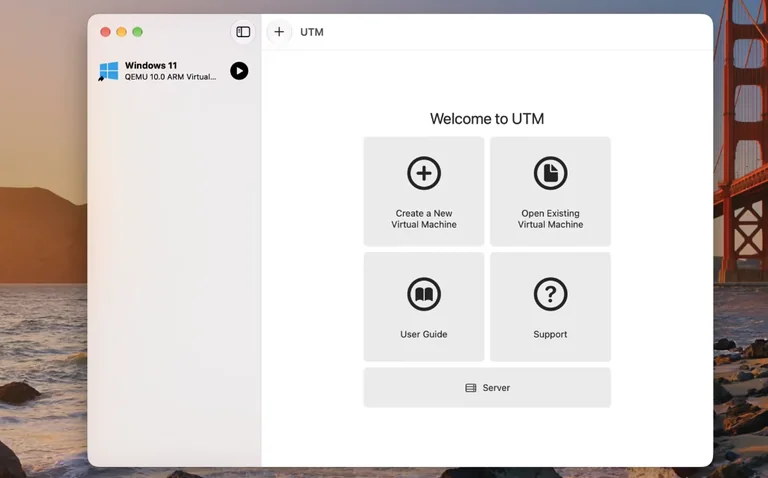
UTM is an open-source virtualization platform that serves as a modern graphical frontend for QEMU (Quick Emulator) while leveraging Apple’s native Hypervisor.framework. It is available completely free via direct download, with an optional paid version in the Mac App Store for users who prefer automated background updates.
Installation and Setup
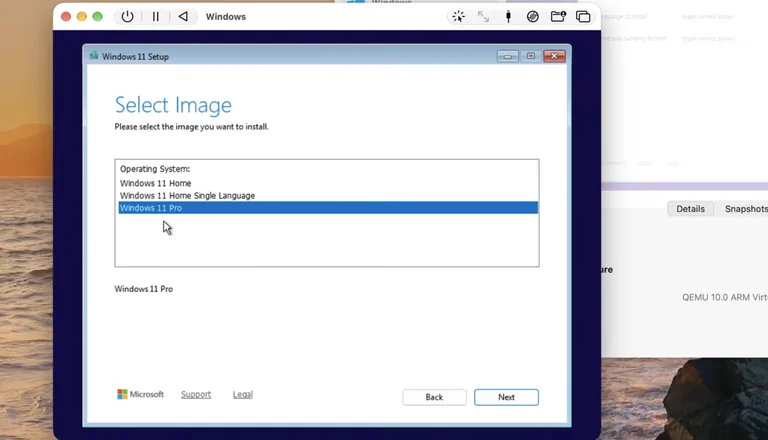
UTM requires a hands-on setup workflow. It does not automate the acquisition of Windows installation media, meaning you must independently download the official ARM64 Windows 11 ISO from Microsoft.
When creating a new virtual machine in UTM, you are presented with two core approaches:
- Virtualize: Executes guest code natively on the host processor using Apple’s virtualization framework. This offers maximum performance and is mandatory for ARM-on-ARM Windows deployments.
- Emulate: Utilizes QEMU software emulation to execute software designed for disparate architectures, including x86_64, i386, and PowerPC. While significantly slower, this mode enables compatibility with legacy operating systems that lack ARM variants.
During virtual machine configuration, UTM mounts a virtual CD containing the SPICE (Simple Protocol for Independent Computing Environments) guest tools. During initial Windows installation, UTM prompts you to press any key to boot from the mounted ISO. Because the default Windows installer does not bundle the necessary VirtIO network drivers out of the box, the network detection stage can stall. Fortunately, UTM’s guest tools package bypasses the Microsoft Account and active internet requirements, allowing you to establish a local Windows account. Once inside the desktop environment, running the guest tools installer configures display drivers, enables the shared clipboard, and initializes network access.
User Experience
UTM functions with clean, minimalist simplicity. Window resizing dynamically scales resolution once the SPICE drivers are deployed, and a manual Retina resolution toggle delivers sharp font rendering. However, integration stops short of enterprise polish. File sharing requires mounting a dedicated shared folder via WebDAV or VirtIO-FS, and direct drag-and-drop file transfers between macOS and the Windows desktop are unsupported.
2. Parallels Desktop: Polished, Automated, and Integrated
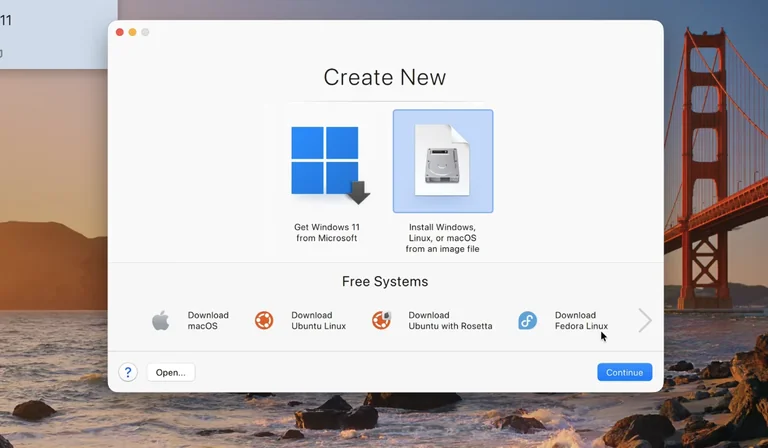
Parallels Desktop remains the market-leading commercial virtualization product for macOS, designed around seamless integration, automated configuration, and business productivity.
Installation and Setup
Parallels streamlines the deployment lifecycle into a frictionless, near-zero-touch installation. If you do not possess an ISO, Parallels will download, verify, and configure the latest ARM64 Windows 11 release directly from Microsoft’s servers. Alternatively, you can point the installer to an existing local ISO image.
The setup wizard asks you to declare your primary workload profile (such as Productivity, Software Development, or Gaming) and dynamically sizes memory, storage, and CPU thread allocations accordingly. Windows installs unattended: license terms are acknowledged within the host application, user accounts are provisioned to match your macOS profile, and Parallels Tools drivers are injected seamlessly in the background. Setup completes in minutes without ever requiring manual intervention on an out-of-box experience (OOBE) configuration screen.
User Experience
Parallels Desktop sets the benchmark for user integration on Apple Silicon:
- Coherence Mode: By decoupling Windows applications from the traditional desktop shell, individual Windows programs display as standalone windows on the macOS desktop, integrating directly into Mission Control, Stage Manager, and the macOS Dock.
- Bi-directional Sharing: Files can be dragged and dropped directly between Finder and Windows Explorer. Host folders like Documents, Downloads, and Desktop map automatically into the guest environment unless explicitly disabled in the isolation preferences.
- Retina Optimization: Displays scale smoothly across multi-monitor setups without scaling glitches or blurriness.
3. VMware Fusion: Enterprise Heritage, Now Free
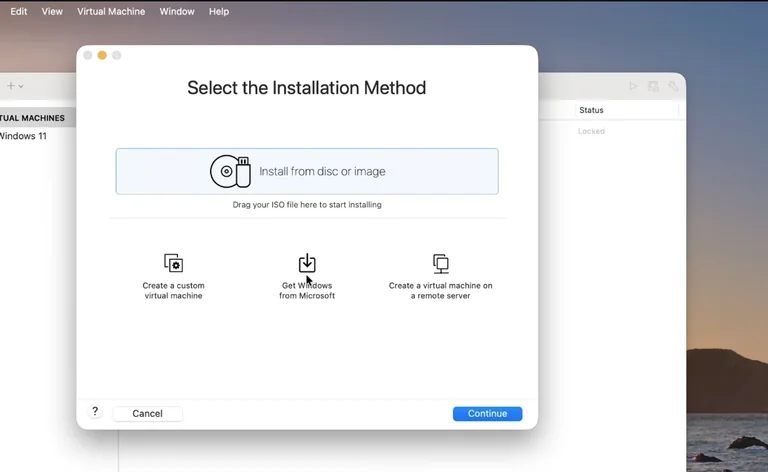
Following its acquisition by Broadcom, VMware Fusion Pro has been made free for both personal and commercial use. This decision brings enterprise-grade virtualization to every Mac user without licensing fees, provided you navigate Broadcom’s software distribution portal.
Installation and Setup
Downloading VMware Fusion requires creating an account on the Broadcom support portal and completing a trade compliance verification form. Once downloaded and installed, Fusion offers an automated download pipeline for the ARM64 Windows ISO, or users can manually supply their own disk image.
Windows 11 requires a Virtual Trusted Platform Module (vTPM) to satisfy Microsoft’s baseline security requirements. VMware Fusion provisions a software-level TPM, which requires encrypting the virtual machine container with a local administrative password. This password must be retained securely; losing it permanently renders the virtual disk unreadable.
During Windows setup, the installer encounters the standard ARM limitation: missing out-of-box network interface card (NIC) drivers. When setup stalls at the “Let’s connect you to a network” screen with the “Next” button disabled, you must invoke the Command Prompt using the key combination Shift + F10 and execute the following command:
OOBE\BYPASSNRO
This commands the system to bypass the network requirement, reboot the installer, and reveal an “I don’t have internet” option to allow the creation of an offline local account. Once on the desktop, navigating to the Fusion application menu and selecting “Install VMware Tools” attaches the driver package to install network, SVGA, and peripheral support.
User Experience
VMware Fusion delivers a stable, focused virtualized workstation. Drag-and-drop file transfers from Finder into Windows work seamlessly once VMware Tools are active. However, at present, shared folder functionality for ARM guests remains more limited than its legacy x86 counterpart. High-DPI Retina scaling functions out of the box, offering a crisp, responsive visual workspace.
Feature Comparison Matrix
| Feature | UTM | Parallels Desktop | VMware Fusion |
|---|---|---|---|
| Price Model | Free / Open-Source ($9.99 App Store) | $99.99/yr or $129.99+ perpetual | Free |
| Installation Complexity | Manual | Automated | Semi-Manual |
| Integrated App Mode | No | Yes (Coherence) | No (Unity unsupported on ARM) |
| Automated Snapshots | Manual only | Yes (SmartGuard) | Yes (AutoProtect) |
| Legacy Architecture Emulation | Yes (x86, PowerPC via QEMU) | Limited (Pro Edition) | No |
| Secondary Guest OS Support | macOS, Linux, BSD | macOS, Linux | Linux (macOS unsupported on ARM) |
| 3D Acceleration | Experimental | DirectX 11 / OpenGL 4.1 | DirectX 11 / OpenGL 4.3 |
Snapshot Capabilities
Snapshotting allows administrators to capture an instantaneous image of a machine’s memory, disk state, and configuration to facilitate disaster recovery before risky software installations.
- UTM: Supports snapshots natively via the QEMU QCOW2 disk format, but snapshots must be created and restored manually.
- Parallels Desktop: Features “SmartGuard,” an automated background snapshot schedule that captures states at hourly, daily, or weekly intervals while auto-pruning aged branches.
- VMware Fusion: Integrates “AutoProtect,” an automated snapshot system operating on configurable 30-minute, hourly, or daily intervals, keeping disk consumption balanced against recovery points.
Performance Benchmarks
All tests were performed on an Apple M4 Mac mini (16 GB unified RAM, 10-core CPU) configured with clean installs of Windows 11 Pro 24H2. Each virtual machine was allocated 4 cores and 8 GB of RAM.
1. Boot Time (Time to Interactive Desktop)
Measured in seconds from machine initialization to a fully responsive Windows desktop environment.
- Parallels Desktop: 8 seconds
- VMware Fusion: 9 seconds
- UTM: 21 seconds
Both Parallels and VMware benefit from tuned UEFI implementations and proprietary fast-boot sequences, reaching a usable state in half the time of UTM’s standard QEMU boot process.
2. Processor Benchmarks: Geekbench 6 and Cinebench 2024
To gauge raw hypervisor overhead, we deployed native ARM64 benchmarks that execute directly on the silicon with zero translation layers.
Geekbench 6.3 (Native ARM64)
- UTM: 3,144 (Single-Core) | 8,788 (Multi-Core)
- Parallels Desktop: 3,141 (Single-Core) | 7,958 (Multi-Core)
- VMware Fusion: 3,113 (Single-Core) | 8,725 (Multi-Core)
Single-core execution proved uniform across the board, matching the limits of the M4 core clock. Under multi-core operations, UTM and VMware Fusion leveraged the host’s scheduling threads slightly more efficiently, outscoring Parallels Desktop by roughly 10%.
Cinebench 2024 (Multi-Core CPU Rendering)
- UTM: 2,153 pts
- Parallels Desktop: 2,154 pts
- VMware Fusion: 2,174 pts
In sustained multi-threaded synthetic rendering, all three platforms performed within margin of error, verifying that compute-heavy calculations hit raw metal regardless of hypervisor choice.
3. Emulated Software Performance: 7-Zip Compression
To test legacy x86 instruction translation through Microsoft Prism, we compressed a standard 1 GB testing dataset using the 64-bit x86 release of 7-Zip. Lower times indicate higher throughput.
- Parallels Desktop: 20 seconds
- VMware Fusion: 20 seconds
- UTM: 25 seconds
Parallels and Fusion demonstrated parity, managing emulated memory calls with high speed, while UTM trailed slightly due to standard memory controller overhead.
4. Host Idle CPU Overhead
Energy efficiency dictates runtime and thermal output, particularly for MacBook Pro and MacBook Air deployments. We measured idle CPU consumption on the macOS host over an extended 2-minute baseline window with Windows idling cleanly.
- Parallels Desktop: ~3% of a single host core
- UTM: ~3% of a single host core
- VMware Fusion: ~7% of a single host core
While Parallels Desktop and UTM drop into near-zero host power states when the guest operating system halts its processor, VMware Fusion incurs a measurably higher baseline polling overhead, which could lead to slightly faster battery drain on mobile devices.
5. Graphics Performance and 3D API Support
Virtualizing graphics requires translating calls to Microsoft DirectX into Apple’s native low-level Metal API.
- Parallels Desktop: Features mature hardware-accelerated DirectX 11 support mapped to Metal. Testing with the Unigine Heaven benchmark (DirectX 11, 1080p medium settings) resulted in an average of over 100 FPS.
- VMware Fusion: Incorporates a robust SVGA3D graphics pipeline supporting DirectX 11, also exceeding 100 FPS in Unigine Heaven with stable frame pacing.
- UTM: Provides experimental 3D support via Mesa VirGL. While software reports DirectX 12 compatibility via software fallbacks, complex 3D workloads frequently fail to render, as verified by Unigine Heaven failing to launch.
Neither Parallels nor VMware currently supports native bare-metal DirectX 12 hardware acceleration. Modern AAA games dependent strictly on DirectX 12 API hooks will fail to launch or suffer substantial graphical artifacts.
Licensing and Cost Analysis
Choosing a hypervisor involves looking at both upfront software pricing and ongoing operating system licensing costs:
- Hypervisor Investment:
- UTM: 100% free via its site; optional $9.99 on the Mac App Store.
- VMware Fusion Pro: 100% free for commercial, educational, and personal use following the Broadcom policy update.
- Parallels Desktop: Commercial software. The Standard Edition (restricted to 4 vCPUs and 8 GB vRAM per VM) costs $99.99 per year or a $129.99 one-time perpetual license. The Pro Edition costs $119.99 annually and unlocks high core/memory allocations, nested virtualization, and developer CLI tools.
- Windows Licensing:
Regardless of the hypervisor chosen, Microsoft requires a valid Windows license. Windows 11 Pro costs $199.99 directly from Microsoft. While Windows 11 functions without immediate product key activation, certain user interface personalization settings will be locked, and an “Activate Windows” watermark will eventually appear on the guest desktop.
Final Assessment: Which Hypervisor Should You Choose?
Selecting the optimal hypervisor on Apple Silicon depends entirely on your workflow, budget, and integration requirements.
- Choose Parallels Desktop if you require the smoothest, most cohesive macOS-to-Windows workflow. If you want individual Windows applications to run alongside your Mac software via Coherence, need fast setup, or rely on shared folders and drag-and-drop daily, Parallels is worth the subscription price.
- Choose VMware Fusion Pro if you want professional virtualization without paying a premium. With Fusion Pro now free for all users, it is an exceptional solution for developers, IT pros, and technical users who need snapshots, stable DirectX 11 acceleration, and solid multi-core performance.
- Choose UTM if you are an open-source enthusiast, value software privacy, or need to run legacy non-ARM operating systems through CPU emulation. While its setup requires more hands-on configuration and its 3D graphics pipeline is still experimental, its lack of commercial bloat and wide architecture support make it an essential tool for tinkerers.
All three platforms prove that Windows 11 on Apple Silicon is fully viable, stable, and remarkably fast. With native ARM execution and Microsoft Prism handling translation under the hood, running critical Windows applications on a modern Mac has never been more accessible.