Today i wanna to share my experiences trying Goose, an open-source AI agent on my Omarchy Linux. You describe a chore in plain words, like tidying a messy downloads folder, and an AI agent does the steps itself. It runs commands and works with your files using the AI model you connect. Goose is one application with two interfaces, a desktop window and a command line, and both share one setup. We’ll start with Goose’s home and who makes it now, then the install. After that, we’ll use the desktop app and the command line, then cover what to know before you try it.
Goose is an open-source, general-purpose AI agent that runs directly on your local machine via a desktop application, command-line interface (CLI), or API. Originally developed by Block, it is now an open project governed by the Agentic AI Foundation (AAIF) at the Linux Foundation.
Key Features of Goose:
- Model-Agnostic: It is not tied to a single AI model. You can plug in models from providers like Anthropic, OpenAI, Google, Amazon Bedrock, OpenRouter, or run local models through Ollama.
- General-Purpose: While frequently used for software engineering tasks (such as writing, testing, and debugging code), it also handles research, writing, data analysis, and general automation.
- Model Context Protocol (MCP) Support: It connects to over 70 external tools, databases, and services using Anthropic’s open-source MCP standard.
- Workflows & Subagents: It supports portable YAML “recipes” to capture workflows, parallel task execution via subagents, and integration with development editors like VS Code, Zed, and JetBrains.
- Local Control & Security: It includes built-in prompt injection detection, tool permission controls, and sandbox modes.
Goose’s home has changed since it started at Block, the company behind Square and Cash App. Block released it as open-source in January 2025 under the Apache License 2.0. In December 2025, Block gave Goose to the Agentic AI Foundation (AAIF), a project of the Linux Foundation. The foundation hosts open-source agent projects, so no single company controls them.
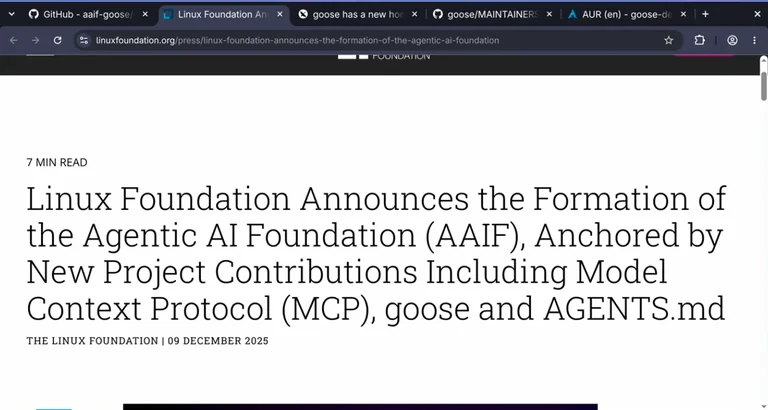
Anthropic, the company behind Claude, also gave the foundation MCP (Model Context Protocol), a standard that connects AI models to tools. Goose’s extensions, the add-ons that bring in more tools, use MCP. In April 2026, the code moved to the foundation’s own GitHub organization (aaif-goose/goose).
As for who makes Goose now, six core maintainers lead the project. A few of Goose’s maintainers work at Block, including at least one of those six.
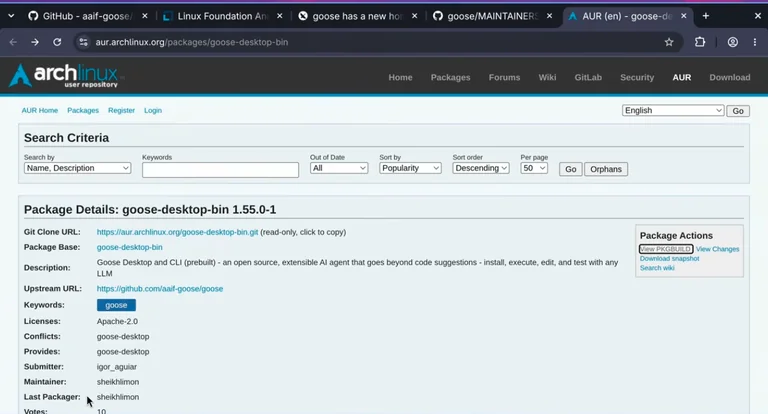
To install Goose here, we use the AUR, the community package collection for Arch Linux. Goose has no official Arch package of its own. Instead, there’s goose-desktop-bin, a community package built from Goose’s official .deb file for Debian and Ubuntu. As with any community package, have an AI coding agent read its build file (PKGBUILD) before you install it.
To find the package, we press Super + Space for the Omarchy menu, where Install has an AUR entry. Super is the Windows key on a PC keyboard. That entry opens a search of every AUR package, and typing goose-desktop-bin finds the package. One package installs both interfaces: the desktop app and the goose command. Once the install finishes, typing “goose” in the same menu finds Goose Desktop.
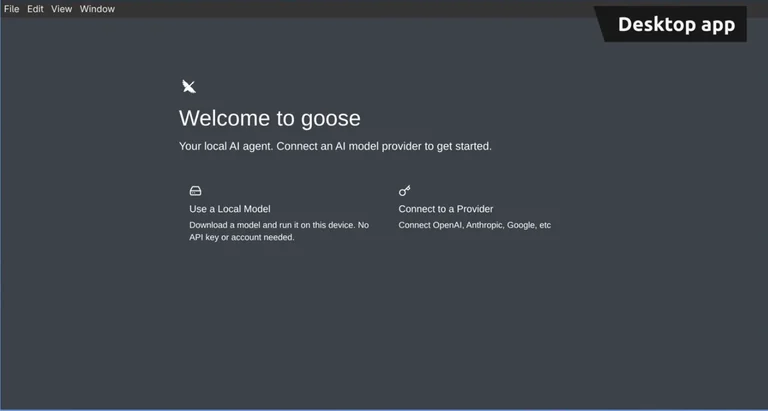
The desktop app opens on a welcome screen that asks for an AI model first. In our setup, Anthropic provides the model, and we connect with an API key, a private code from our account. The provider list also has sign-in with a ChatGPT subscription. This key field shows the key in plain text, so anyone who sees your screen can read it. We connect in the terminal setup instead because it hides the key.
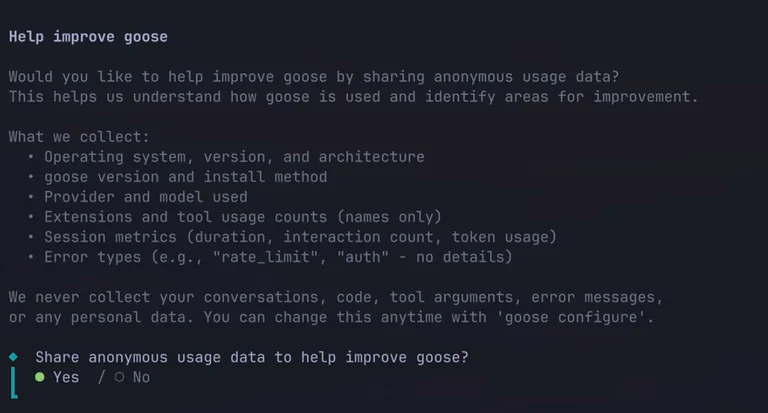
In a terminal, type and run the goose configure command. we will walks through a first-time setup on a fresh install. Its first question is about sharing anonymous usage data, with yes picked by default, so we answer no.
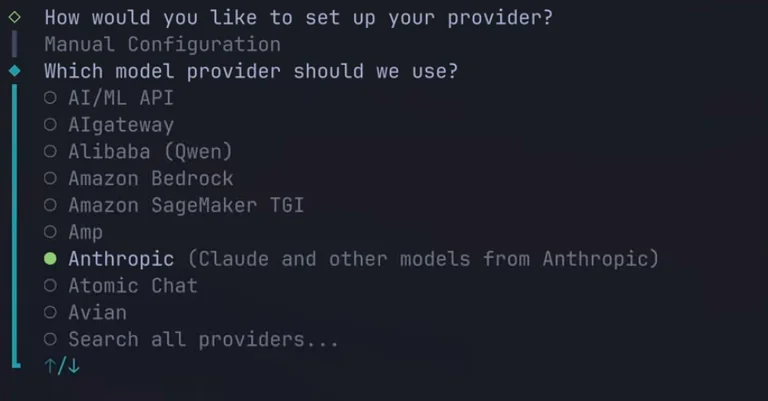
The manual configuration option opens the provider list, where we pick Anthropic. The key prompt shows dots in place of the key. For the model, we pick Claude Sonnet. The last question sets the Goose mode, which controls whether Goose uses tools freely or asks you first. We keep auto, the default.
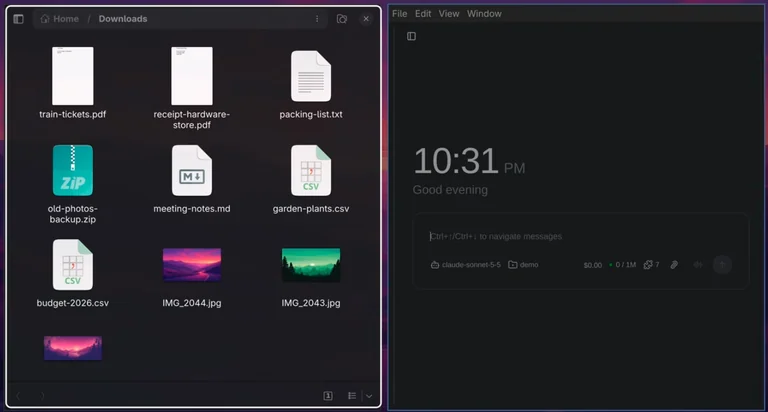
The desktop app reads the same settings. So, after a restart, it opens on the chat home. With a model connected, Goose can work on real files, like the Downloads folder open in the Files app next to it. We ask Goose to sort the Downloads folder into photos, documents, spreadsheets, and archives.
Goose runs ordinary terminal commands to do the work. And the four folders appear in Files. All 10 files move, and the photos folder has three pictures inside. Goose’s reply lists each folder’s files and explains its choices, like putting the text notes under documents. Each command Goose ran is a tool call. And the sort’s arrow opens its details, including the full command. That sort ran through the Developer extension — the add-on that lets Goose run terminal commands.
Goose Extensions
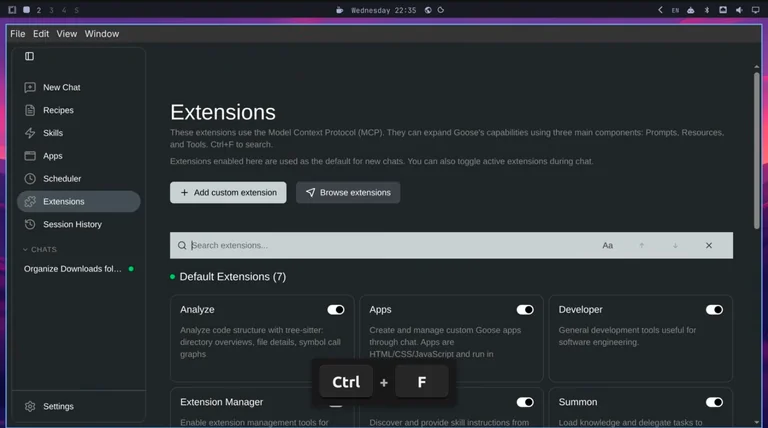
The Extensions page lists the others, and seven are on by default. Ctrl+F searches them, and typing “computer” finds Computer Controller. On Linux, it adds tools for PDF, Word, and Excel files. The switch turns Computer Controller on for new chats. So, we open a new chat from the sidebar. We ask for the total on a store receipt, saved as a PDF in Downloads. The model decides which tool to use for each step. Goose finds the total, $37.48. And the first tool call shows Computer Controller’s PDF tool at work.
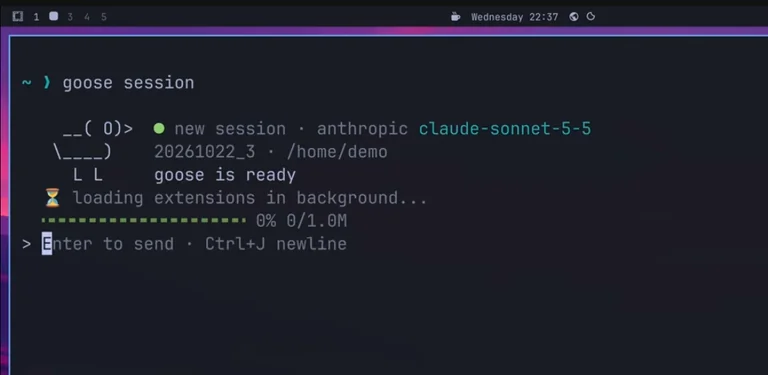
In the terminal, Goose uses the same setup. So, the goose session command starts on Anthropic and Claude’s model. We ask which month had the highest grocery spending in our budget spreadsheet. Goose reads the file and answers January at $420. The terminal prints each tool call in full, while the app shows each one as a single line you can open.
Goose Memory
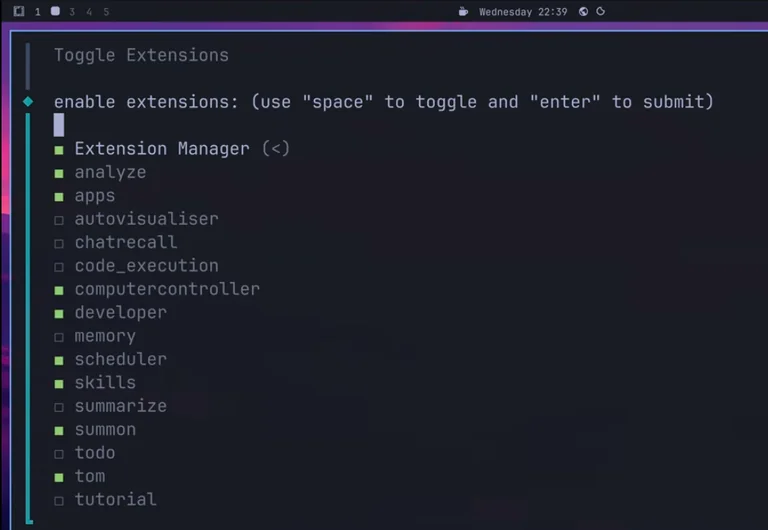
Memory is an extension that keeps facts between sessions, and we turn it on in the terminal. In goose configure, the toggle extensions option opens a list that filters as we type “mem”. We start a new session and ask Goose to remember where we keep our receipts. Goose calls its memory tool and stores the fact under a category it names “file locations”. To check that Goose remembers, we end this session with /exit. Then we ask a fresh session where the receipts are kept. Goose recalls that the receipts are in the Documents folder inside Downloads. Memory saves each category as a plain text file in Goose’s config folder.
My Conclusion
Before you try it, know that Goose itself costs nothing and the model provider bills you for what you use. Each chat’s footer shows its running cost, and the folder sort cost 3 cents in our setup. A model that runs on your own computer costs nothing beyond the hardware.
Up to now, Goose has run every command without asking first. Its default mode, called autonomous in the app, lets it use tools without approval. In Settings, the Chat tab has a Default Mode section, and a change there applies to new chats. Manual mode asks before each tool it uses, and Smart mode asks only for actions it judges risky.
Wrapping up, we can used Goose from the desktop app and the command line with the same settings. In both, it ran commands, read files, and used extensions with the model we connected. Since December 2025, Goose has lived at the Agentic AI Foundation, part of the Linux Foundation. If you’d like to try this yourself, every command we used is in the full guide on starryhope.com, linked below. If this video helped, a like and a subscribe help the channel. Thanks for watching.