So, I’ve been using Fedora KDE as my main Linux distribution for a while now. At first, it was really good — exactly what I wanted. On paper, it sits somewhere between Debian and Arch. But the more I used it, the more issues I ran into.
The most annoying problem was that some apps just wouldn’t run. Sometimes I’d get a blank screen. Right now, it boots up to the login screen, but after I log in I get this error. I feel like it might be related to Secure Boot, but I want to keep Secure Boot enabled because I dual-boot with Windows. I’ve already set up the Secure Boot tools, patched the NVIDIA graphics driver modules, and everything was working fine… until something random would break and I’d be stuck again.
So I’ve decided to switch to a more popular and more stable Linux operating system. It’s not Ubuntu, but it’s based on Ubuntu. I’m going with Kubuntu, because after testing both KDE and GNOME, I clearly prefer KDE.
Let’s download Kubuntu and install it. The updates will be a bit slower than on Fedora, but I’m hoping it’ll be much more stable and compatible. There was one specific AI tool that just refused to work properly on Fedora, and even OBS Studio started having issues. Since Kubuntu is based on Debian/Ubuntu, I expect better stability and compatibility.
I’m installing the latest Kubuntu 26.10, which was released in October 2026. I’m skipping the LTS version because I want the newer software and updates.
The ISO is downloaded and I already have my Ventoy USB ready, so I’m just copying the ISO over. Now let’s boot into the Kubuntu live environment.
I’ll select “Try Kubuntu” first. I need to change the display settings right away — my capture card only handles 60 Hz, and by default KDE uses the maximum refresh rate of the monitor. Once I set it to 60 Hz, I can record cleanly from the capture card. This is one of the reasons I like KDE so much: managing multiple displays is easy and reliable. You can also duplicate monitors without any hassle.
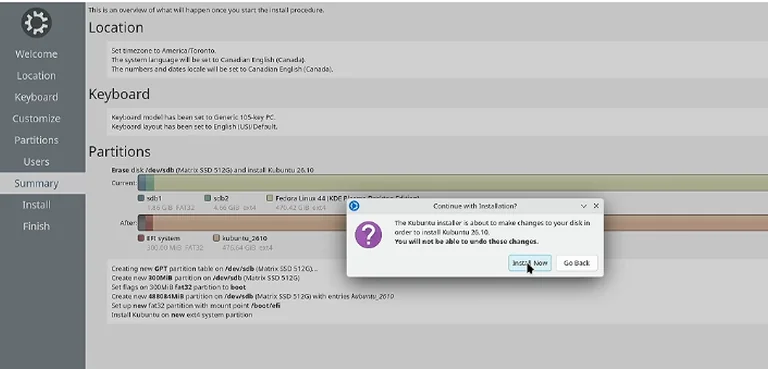
Now for the installation. I’m choosing the minimal installation because I don’t want Snap packages. I can always install them later if needed. I’ll also check the option to download and install updates during installation to save time later.
For partitioning, I’m erasing the disk. Selecting the SSD where Fedora is currently installed, choosing “Erase disk,” and continuing.
Setting up the user account… everything looks good. The installer warns that the changes can’t be undone — that’s fine. Installing now.
Installation is complete. Time to reboot.
Logging in and immediately changing the refresh rate again so the capture card can handle it properly. Welcome to Kubuntu.
First things first — switching to a dark theme. There are handy links to the Kubuntu website and how-to guides, which is nice. Since I chose the minimal install, there’s no browser pre-installed. Opening Discover (I’m not using Synaptic), unpinning it, and installing a browser.
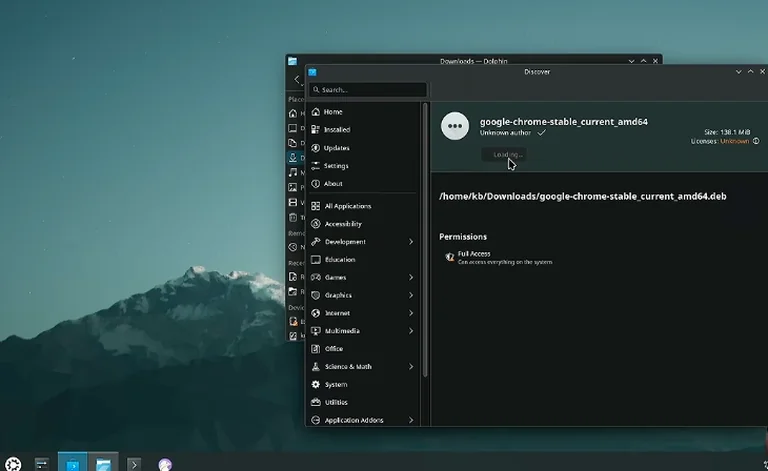
I’ll grab Falkon first, then use it to download Google Chrome. I know some people don’t like Chrome, but it’s what I prefer. Downloading the official installer, double-clicking it, and installing through Discover. Easy.
Chrome is installed and pinned to the task manager. Kubuntu uses APT, of course. Almost every Linux troubleshooting guide you’ll find online is written for Debian, Ubuntu, or Kubuntu — so it’s a very beginner-friendly distro. I’m not saying Fedora is bad, but it’s not the most friendly option for newer users.
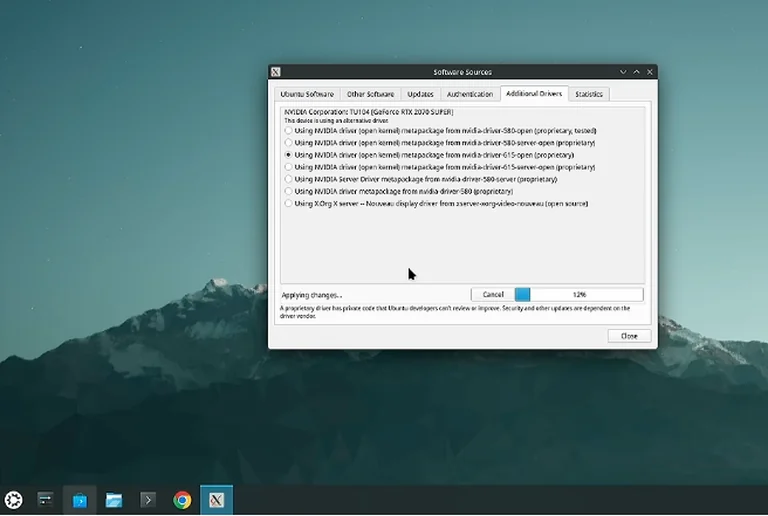
Next: NVIDIA drivers. I can do this from Discover → Software Sources → Additional Drivers. Selecting the latest proprietary NVIDIA driver (version 615) and applying the changes. Kubuntu has a GUI for almost everything. Hopefully it will handle Secure Boot automatically. On Fedora I had to do everything manually from the command line.
It installed the driver without asking me to set up anything related to Secure Boot. I’m taking the risk and rebooting without running extra commands.
After reboot… the lock screen looks broken at first, but I’m in the desktop. Checking nvidia-smi — it works. The NVIDIA driver loaded properly without me having to manually sign the modules. That’s a huge improvement.
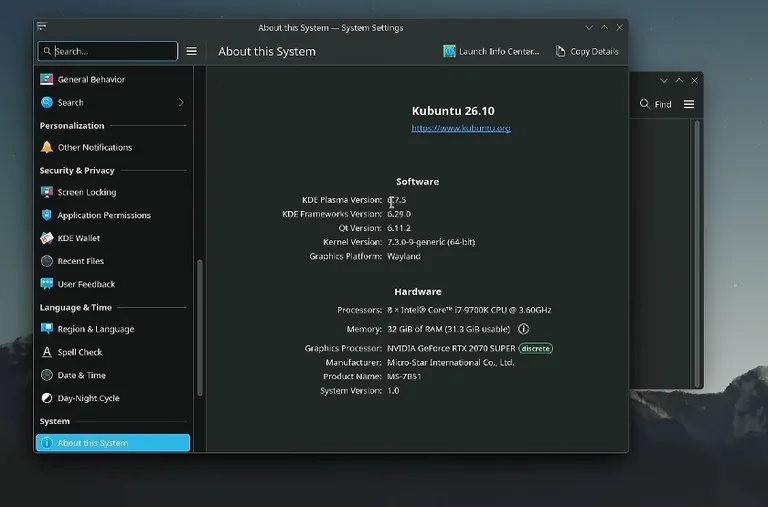
System info shows KDE Plasma 6.7.5, kernel 7.3, and Wayland. Perfect. No errors, no manual Secure Boot configuration required. This is exactly what I wanted.
Now some light customization. Applying the Layan global theme (appearance and settings only, not the desktop layout). Switching the window decoration back to Breeze because I like the default. The theme already includes Tela icons. Downloading my favorite cursor theme, Bibata.
A few extras that weren’t present (or were less polished) in Fedora KDE: splash screen, login screen, and boot splash options. Trying the Matrix splash screen just for fun, and installing a Kubuntu-themed boot splash (Linux distro logos style).
Time to test the software that caused problems on Fedora.
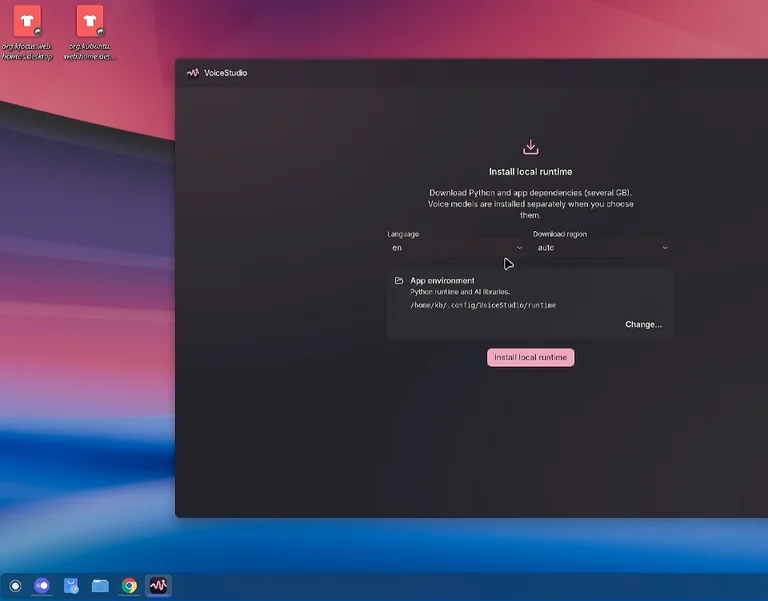
Voice Studio (the free and open-source voice cloning tool) has an official installer for Debian/Ubuntu-based systems, while other distros are limited to AppImage. On Fedora it needed extra configuration just to launch. Here it starts immediately. Setting up the local frontend and testing dictation — it works right away. Another clear advantage of a popular Debian-based distribution.
Next up: PhotoCraft (part of the ArtCraft suite — free and open-source Adobe Photoshop alternative available for Windows, macOS, and Linux). Flathub wasn’t pre-enabled, so I installed the Flatpak backend for Discover. PhotoCraft is available as both Flatpak and a Debian package. There’s also an ArtCraft Launcher.
The Flatpak version was a bit outdated, so I switched to the AppImage. Using Gear Lever makes installing and managing AppImages very easy. After updating and launching, PhotoCraft runs extremely well. It’s built in Rust and feels very fast. Object selection, quick selection, and basic editing all work smoothly.
There’s also FilmCraft, a professional video editor from the same developers (positioned as a Premiere Pro alternative). I’m mainly a DaVinci Resolve user (which works excellently on Linux), but FilmCraft feels impressively fast and includes a demo project.
So far everything is looking solid. To really know the OS, I’ll need to daily-drive it the same way I did with Fedora. I loved Fedora at the beginning, but issues kept piling up over time. I’m hoping Kubuntu stays more reliable.
That’s it for this one. Hope you enjoyed it. If you have any questions or suggestions, drop them in the comments — happy to chat there. See you in the next one. Take care and have fun. Bye!